My Website Is Showing a 500 Error
A 500 error on WordPress is almost always a plugin or theme conflict. Check error.log in your site's Site Logs tab, then disable the plugin it names, by renaming its folder over SFTP if you can't reach wp-admin.
Why is my website showing a 500 error?
Your site shows "500 Internal Server Error," "There has been a critical error on this website," or a completely blank white page. All three mean the same thing: the server received the request, but the PHP code that builds your page stopped with an error before it could finish. Your files and content are almost always still there - something in the code is failing.
What causes a 500 error on WordPress?
- A plugin or theme update conflicts with your site (the most common cause by far). The log entry will mention a path inside
wp-content/plugins/orwp-content/themes/. - A PHP version change broke code that relied on an older version. If the error started right after you changed PHP version, this is the likely cause.
- A manual code edit with a typo, for example in your theme's
functions.phpor inwp-config.php. The log usually reports a "syntax error" with a file name and line number. - The site ran out of PHP memory. The log shows "Allowed memory size exhausted," often naming the plugin that was running at the time.
How do I find what caused the error?
The error log tells you, so read it before changing anything. The most recent entry at the time you loaded the broken page is the one that matters.
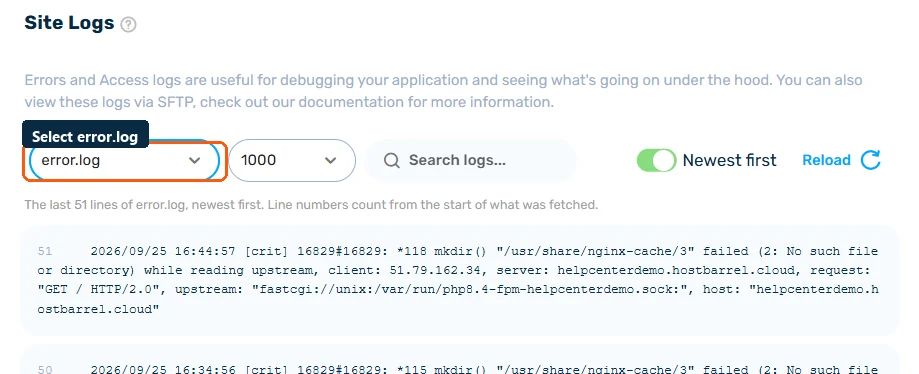
If the log doesn't say enough, turn on WP Debugging in the Development category of the Tools tab, load the broken page again, and check the logs for a more detailed message. Turn it off again once you're done.
How do I fix a 500 error?
- Go to your site's Site Logs tab, switch to error.log, and check the most recent entry - it usually names the exact plugin or file causing the problem
- If you recently updated or installed a plugin, deactivate it via SFTP by renaming its folder in
wp-content/plugins(adding-disabledto the name deactivates it without needing wp-admin). Your SFTP details are on the site's Info tab. - Reload the site. If it works, the renamed plugin was the cause. Update it, replace it, or ask its author for a fix before you switch it back on.
- If the log points to your theme, rename the active theme's folder in
wp-content/themesthe same way. WordPress then falls back to a default theme if one is installed. - If you changed your PHP version recently, try reverting it from PHP Version in the Tools tab to see if that resolves it
- If a PHP change still seems stuck, click Restart Now on the PHP Service card in the same tab
- Restore a backup from just before the error started - see Site Backups: Automatic, Manual & Downloadable
What if the error says PHP ran out of memory?
A memory error usually means one plugin is doing far more work than it should, such as a large import, a backup plugin or a page builder on a very big page. Disable the plugin named in the log and check whether the site recovers. If the error comes back with everything else working, open a ticket so we can look at the site's memory use with you rather than guessing at limits.
When should I contact support?
Contact us if the error log is empty, if the error comes back after you've disabled the plugin it names, or if a restore doesn't help. Paste the exact error message from your Site Logs tab into a support ticket - it's the single most useful thing you can include. See Getting Support: Tickets & Live Chat.
How do I prevent 500 errors?
- Take a manual snapshot with Take a snapshot in the Manual category of the Backups tab before updating plugins, themes or PHP
- Update plugins one at a time on busy sites, so you know which one caused a problem
- Try major updates and PHP version changes on a Dev environment first - see Using Dev Environments & Push to Live
- Remove plugins you no longer use, since every plugin is one more thing that can conflict
