Using Dev Environments & Push to Live
A Dev environment is a private copy of your site for testing. Create one with Create Dev Env on the site page, make your changes there, then click Push to Live to replace the Live site's files and database with the Dev version.
What Is a Dev Environment?
A Dev environment is a separate copy of your site where you can test theme changes, plugin updates, or redesigns without touching what your visitors see. It runs on its own URL and has its own files and database.
Creating a Dev Environment
- Open your site from the Sites page
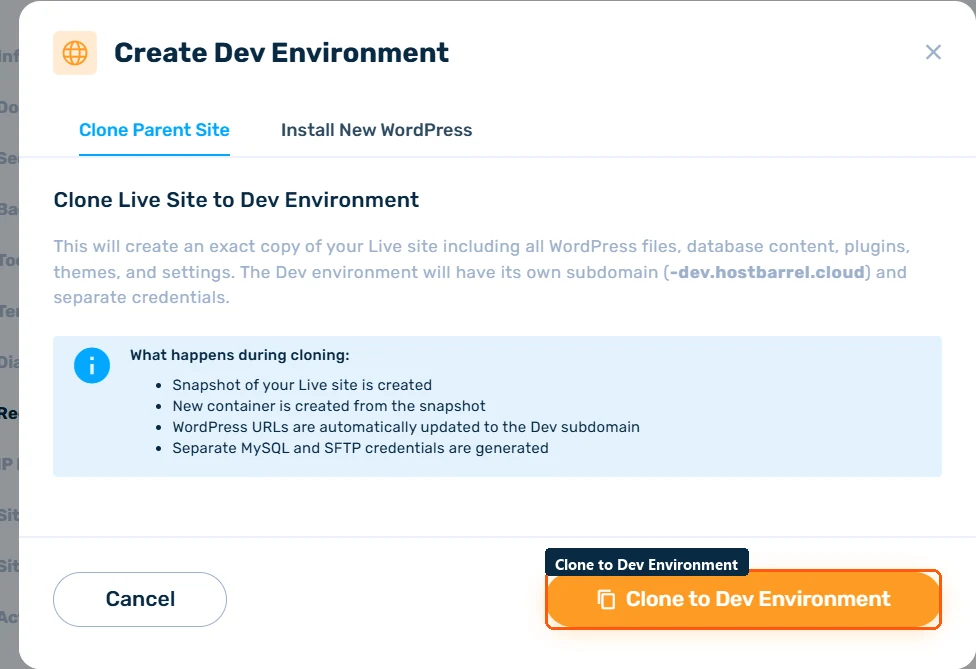
- Click Create Dev Env in the site header
- Choose Clone from Live (an exact copy of your current site - the usual choice) or a fresh WordPress install (for building something new from scratch)
Switching Between Live and Dev
Once the Dev environment exists, use the environment switch at the top of the site page to flip between Live and Dev. Everything on the page - domains, tools, backups, logs - applies to whichever environment is selected, so double-check the badge before making changes. The Sites list also shows Live/Dev badges for quick access.
Pushing to Live
Happy with your changes? While viewing the Dev environment, click Push to Live. This replaces the Live site's files and database with the Dev version.
Important: pushing overwrites Live entirely - including any content created on Live since you cloned it (new blog posts, WooCommerce orders, form submissions). For content sites, coordinate the push for a quiet moment; for stores, prefer testing plugin updates on Dev and applying them on Live rather than pushing a stale database over fresh orders.
Recommended Workflow
- Take a manual backup of Live (see Site Backups: Automatic, Manual & Downloadable)
- Clone Live to Dev
- Test your changes on Dev
- Push to Live once verified
