WordPress Shows a Database Connection Error
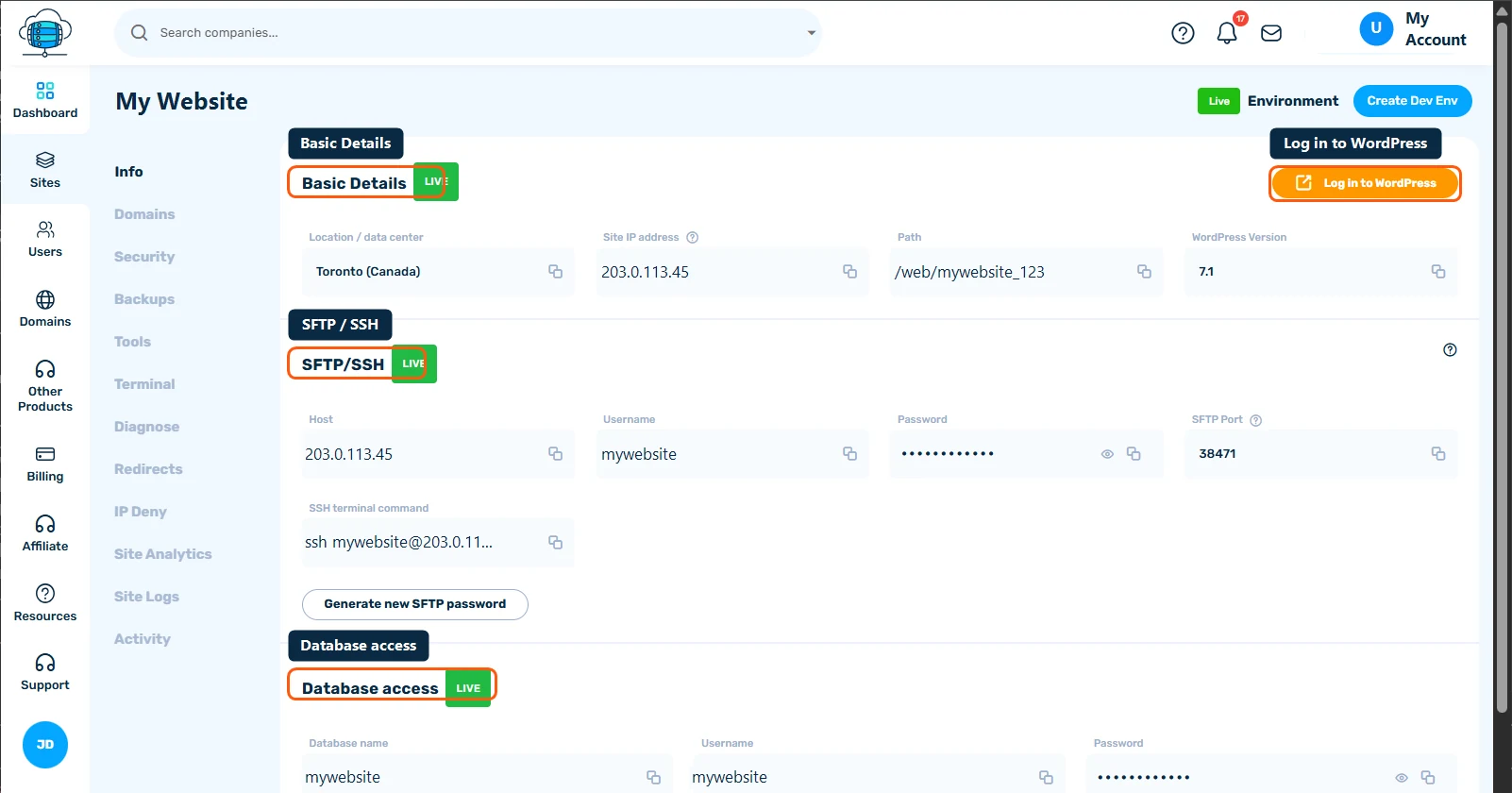
"Error establishing a database connection" means WordPress can't log in to its database. Open phpMyAdmin from your site's Info tab: if it works, the database is fine and the details in wp-config.php are usually wrong.
Why does WordPress say "Error establishing a database connection"?
Instead of your site, WordPress shows "Error establishing a database connection" - sometimes on every page, sometimes only in wp-admin. Every WordPress page is built from content stored in a database. Before it can show anything, WordPress logs in to that database using the name, username and password in its wp-config.php file. If that login fails, or the database doesn't answer, WordPress stops and shows this message instead.
Your posts and pages are not lost when you see this error. It is a connection problem, not a deletion.
What causes a database connection error?
- Incorrect database credentials in
wp-config.php, usually after a manual edit, or after copying files over from another host along with that host's old database details - The database itself is temporarily unreachable or under heavy load, which typically shows as the error coming and going rather than staying
- A corrupted database table, often after an interrupted import or Search & Replace run. This one sometimes affects only
wp-adminor only some pages. - Your account is out of disk space, which can stop the database from working normally. The Resources page shows your disk usage against your plan's limit.
How do I check what's wrong?
- Open phpMyAdmin from your site's Info tab - if it opens and you can browse your tables, the database itself is healthy and the problem is likely your credentials in
wp-config.php - Compare the
DB_NAME,DB_USER, andDB_PASSWORDinwp-config.phpagainst the Database access section of your site's Info tab
How do I fix it?
- If the details don't match, connect over SFTP (your details are on the same Info tab), download a copy of
wp-config.phpas a safety backup, then correct the values in it. Copy them with the copy icon rather than retyping, as one wrong character is enough to break the login. LeaveDB_HOSTas it is unless Support tells you otherwise. - Reload your site. If it loads, you're done.
- If the credentials were already correct, look in phpMyAdmin for any table marked as crashed or in use. Select it and use the Repair table option.
- WordPress also has its own repair page: add
define('WP_ALLOW_REPAIR', true);towp-config.php, visityourdomain.com/wp-admin/maint/repair.php, run the repair, and then remove the line again, because that page doesn't require a login while the line is there. - Check the Resources page. If disk usage is at your limit, delete files you no longer need over SFTP (old backup archives left by a plugin are a common culprit), or upgrade your plan.
- If you don't see an obvious cause, restore a recent backup - see Site Backups: Automatic, Manual & Downloadable
When should I contact support?
Contact Support if phpMyAdmin won't open, if the error comes and goes, or if the credentials match and a repair doesn't help. Mention whether phpMyAdmin opens normally - that single detail tells us whether to look at your database or your WordPress configuration first. Tell us too if you changed anything shortly before the error started, such as an import, a Search & Replace run or an edit to wp-config.php.
How can I avoid database errors in future?
- Create a manual backup before imports, migrations and Search & Replace runs, so an interrupted job can be undone
- Keep a copy of
wp-config.phpbefore editing it by hand - When you move a site in from another host, check that
wp-config.phpuses the database details from your Info tab, not the old host's - Turn on the High Storage alert in Settings > Alert settings so you know before you run out of disk
