My Website Isn't Loading
When a website won't load, first open it on another network, such as your phone on mobile data. If it loads there, the problem is on your own connection. If it doesn't, check the domain's DNS status in the site's Domains tab and the latest entries in Site Logs.
Why won't my website load?
Visiting your domain shows a browser error like "This site can't be reached," a timeout, a blank white page, or a 502/503 error instead of your website. The exact message is a useful clue:
- "This site can't be reached" or "server IP address could not be found" - the browser couldn't look up where your domain lives. This is almost always DNS.
- "Connection timed out" - the browser found an address but nothing answered there. The domain may still point to an old server, or your own network may be blocking the connection.
- 502 or 503 error - the request reached a server, but the site behind it didn't answer properly.
- Blank white page, 500 error, or "There has been a critical error" - your site is reachable but its code is failing. Go straight to My Website Is Showing a 500 Error.
What usually stops a website from loading?
- DNS hasn't finished pointing to HostBarrel yet, or was recently changed. DNS changes can take up to 24-48 hours to reach everyone.
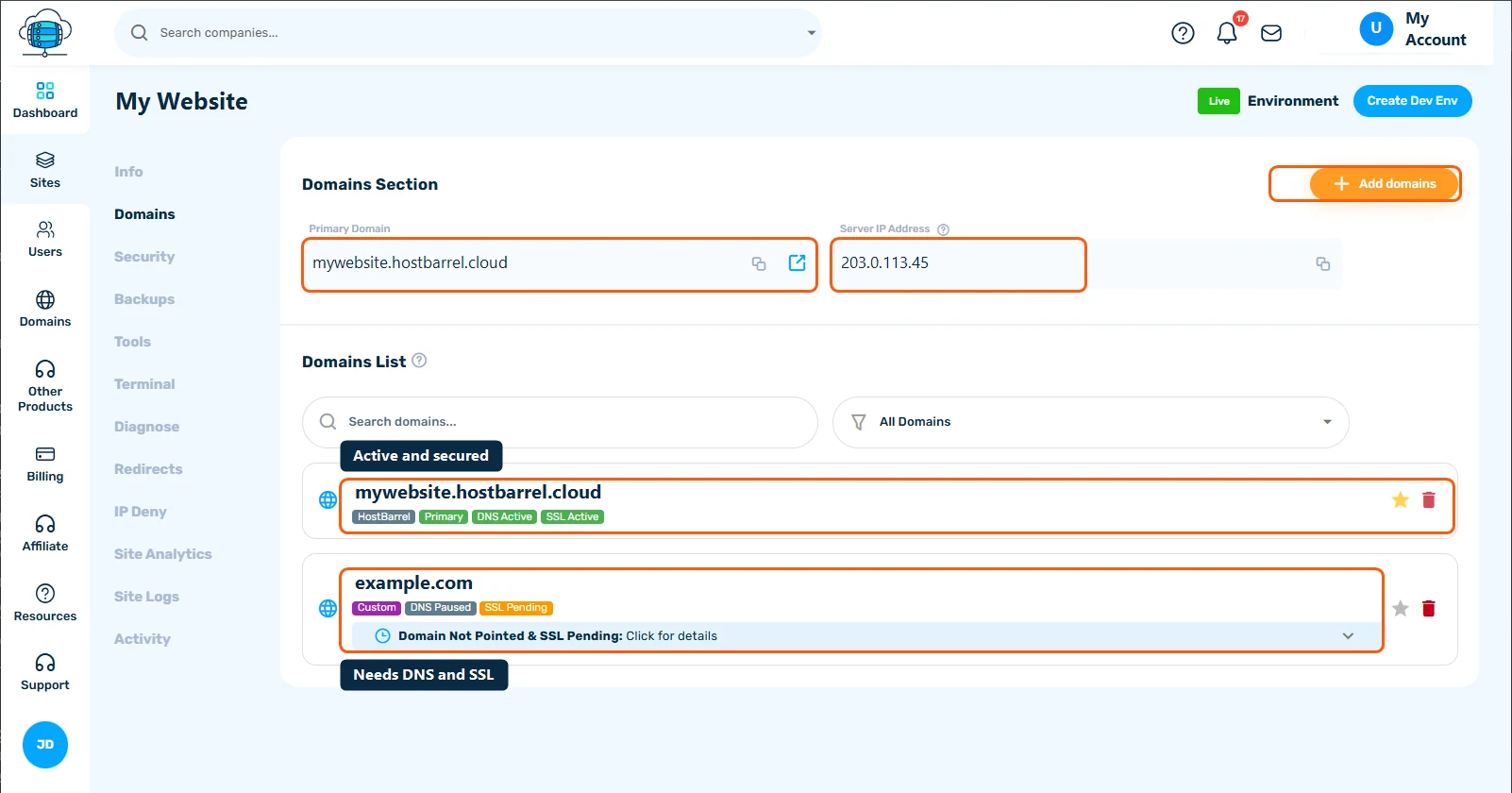
- The domain's badge shows DNS Paused or DNS Failed in your dashboard. The domain isn't pointing at your site, so visitors are sent somewhere else or nowhere.
- The domain has expired. An expired domain stops resolving even if the site itself is fine. Check the Domains page in the sidebar, which shows expired and expiring domains.
- A plugin or theme update broke the site. This usually shows as a 500 error or a white page rather than "can't be reached."
- You're checking from a location where DNS hasn't propagated yet, while the site already works elsewhere.
What should I check first?
- Open your site from your phone on mobile data (not WiFi) - if it loads there, it's a local DNS caching issue, not a HostBarrel problem. Restarting your router or computer, or simply waiting, usually clears it.
- Go to Sites in your dashboard and check the site's Domains tab for its DNS status
- If it says DNS Paused, follow How to Point Your Domain to HostBarrel to recheck your records, then open the domain's details and click Check DNS again
What should I try next?
- Check
whatsmydns.netto see whether your domain resolves to HostBarrel from multiple locations worldwide. Compare the address it shows with the Server IP Address at the top of your site's Domains tab. If some locations still show an old address, the change is still propagating. - Try your free HostBarrel address, the
yoursite.hostbarrel.clouddomain marked HostBarrel in the Domains tab. If it loads but your own domain doesn't, the site is fine and the problem is the domain's DNS. Once your own domain is set as Primary, WordPress may forward you from the HostBarrel address to it, so a redirect there is normal. - If DNS looks correct everywhere but the site still won't load, open the site's Site Logs tab and read the most recent entries in error.log
- If the errors started right after an update, restore a backup from before the change - see Site Backups: Automatic, Manual & Downloadable
When should I contact support?
Open a support ticket from Support in your dashboard if DNS points to HostBarrel everywhere and the site still won't load, if the free subdomain is down too, or if you see a 502 or 503 error that doesn't clear within a few minutes. Include your domain name, when you first noticed the problem, the exact error message, and what you've already tried - see Getting Support: Tickets & Live Chat.
How can I stop this happening again?
- Turn on the Site Down email alert in Settings > Alert settings, so you hear about an outage before your visitors tell you
- Keep an eye on domain renewals on the Domains page, since an expired domain takes the site offline
- Take a manual backup before plugin, theme or PHP changes, so you can roll back in minutes
- Test big changes on a Dev environment before they reach Live
