Using Site Tools: PHP, Caching & Logs
Open a site from the Sites page and click its Tools tab to change the PHP version, turn caching on or off and clear the cache. Error and access logs are in the separate Site Logs tab.
Site Tools Overview
Each site on HostBarrel comes with a set of built-in tools accessible from your site's detail page. Click on a site name from the Sites page, then look for the Tools tab.
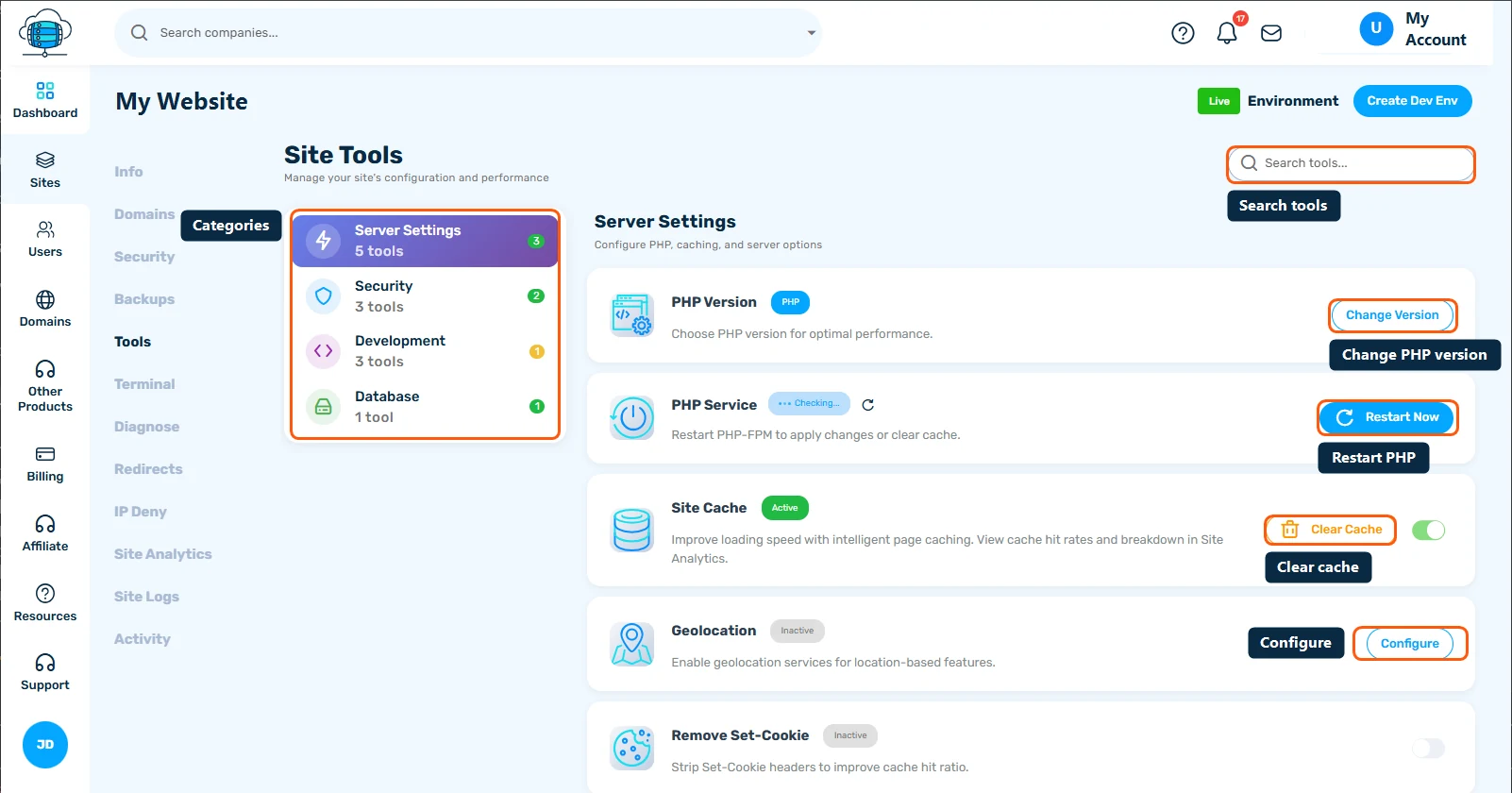
Changing Your PHP Version
HostBarrel supports multiple PHP versions. To change yours:
- Go to your site's Tools tab
- Find the PHP Version section
- Click Change Version and select the version you want from the supported list
- Click Save Changes - the switch takes effect within a few seconds
Nginx Caching
Nginx caching dramatically speeds up your site by serving cached pages to visitors. From the Tools tab:
- Enable/Disable caching with a single toggle
- Clear Cache when you make changes to your site and want visitors to see them immediately
Viewing Site Logs
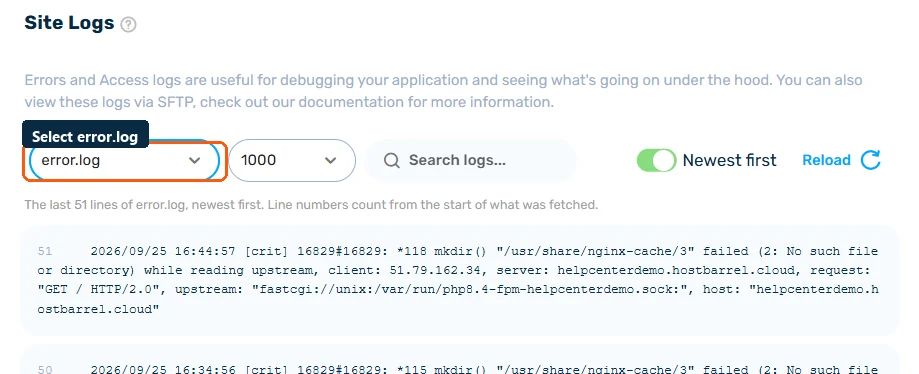
The Site Logs tab shows your site's error logs and access logs. This is helpful for debugging issues like plugin errors, broken pages, or 500 errors.
Search & Replace
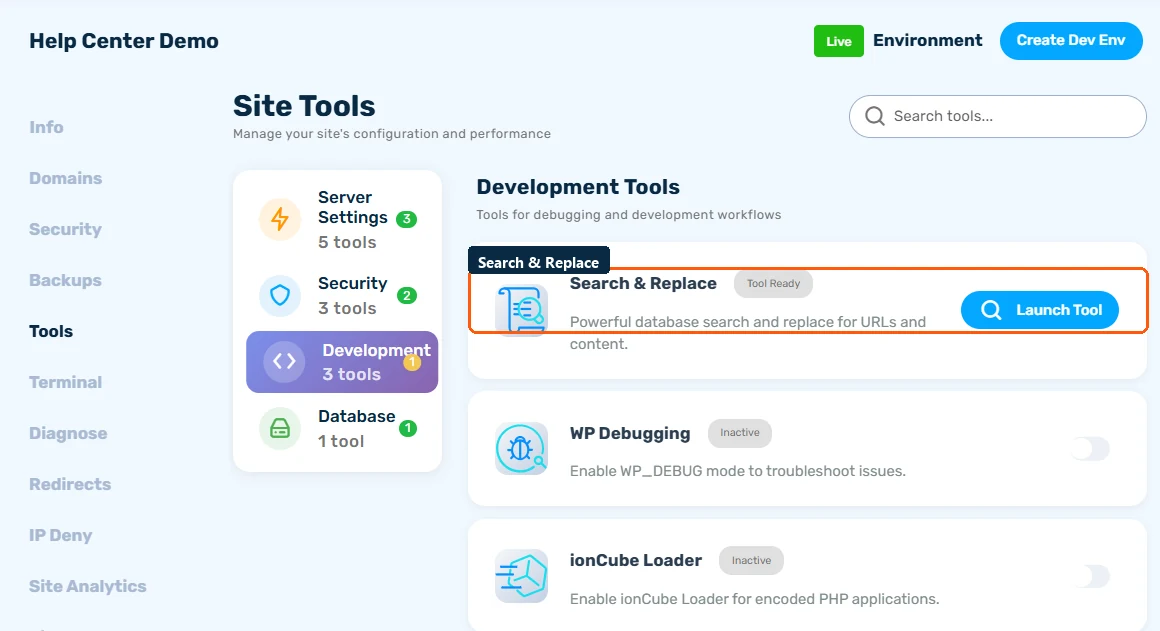
The Search & Replace tool lets you find and replace text in your WordPress database. This is especially useful after changing your domain - you can update all old URLs in one go.
⚠️ Back Up First
Search & Replace edits your live WordPress database directly and can't be undone from within the tool. Create a Manual Backup before running it - see Site Backups: Automatic, Manual & Downloadable.
Backups
HostBarrel creates daily automatic backups of your site. You can view and restore backups from the Backups tab. If your plan includes hourly backups, those will appear here too.
