Getting Support: Tickets & Live Chat
To get help, open a ticket from Support in your dashboard sidebar, or use the chat bubble in the corner of the dashboard to talk to our team in real time. Including the site name, the exact URL and any error message gets your issue solved fastest.
Opening a Support Ticket
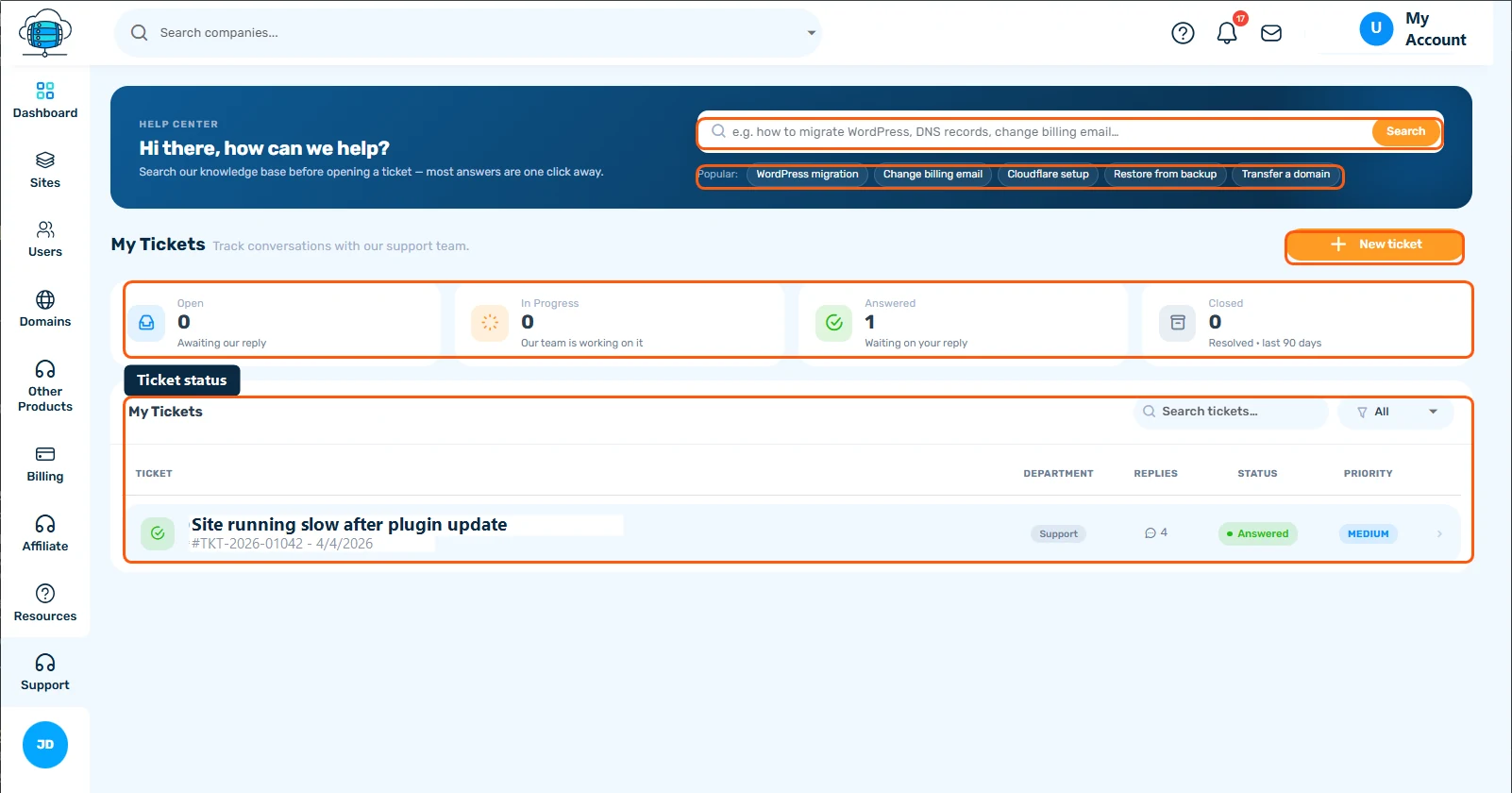
Go to Support in your dashboard sidebar and click New Ticket. Fill in:
- Subject - a short summary of the issue
- Priority - how urgent it is for you
- Department - technical support, billing, etc., so the right team sees it first
- Description - the details (see tips below)
Following Up
All your tickets are listed under My Tickets with their status. Open a ticket to read replies and respond - the conversation is threaded with the newest messages first. You'll also see new replies in the messages dropdown in the header, so you don't need to keep the ticket page open.
Closing & Reopening
When your issue is resolved you can click Close Ticket. If the problem comes back, just reply to the closed ticket - sending a new message automatically reopens it. No need to start over.
Live Chat
The chat bubble in the corner of your dashboard connects you to our team in real time. Since you're logged in, your name and email are already filled in - just type your question.
Tips for a Faster Resolution
- Include the site name and the exact URL where the problem occurs
- Describe what you expected vs what actually happened
- Mention anything you changed recently (new plugin, DNS change, etc.)
- Paste exact error messages rather than paraphrasing them
