I Can't Log In to WordPress
If you can't log in to WordPress, open your site's Info tab in the HostBarrel dashboard and click Log in to WordPress. It signs you in without a password, and you can then set a new one from your WordPress profile.
Why can't I log in to WordPress?
You can't sign in to wp-admin - either your password isn't accepted, the login page keeps reloading without an error, or you're redirected somewhere unexpected. Each of these points to a different cause, so note which one you're seeing.
What usually causes a WordPress login problem?
- Forgotten or changed WordPress admin password. The login form says the password is incorrect.
- A security plugin is blocking your IP address after failed attempts. You usually see a "locked out" or "access denied" message from the plugin, often for a set time.
- A caching issue is serving an old version of the login page, or old cookies in your browser. The page reloads back to the login form with no error.
- A security rule on your site is stopping you. If you added a Security Rule, a Block countries rule or an IP Deny entry, it can block your own connection to the login page.
- The site's address settings point to an old domain, common after a migration or domain change. Logging in sends you to a different address, or loops.
How do I get back into WordPress?
- Skip the password entirely - go to your site's Info tab in your HostBarrel dashboard and click Log in to WordPress for one-click access, no password needed
- Once you're in, you can reset your password normally from your WordPress profile
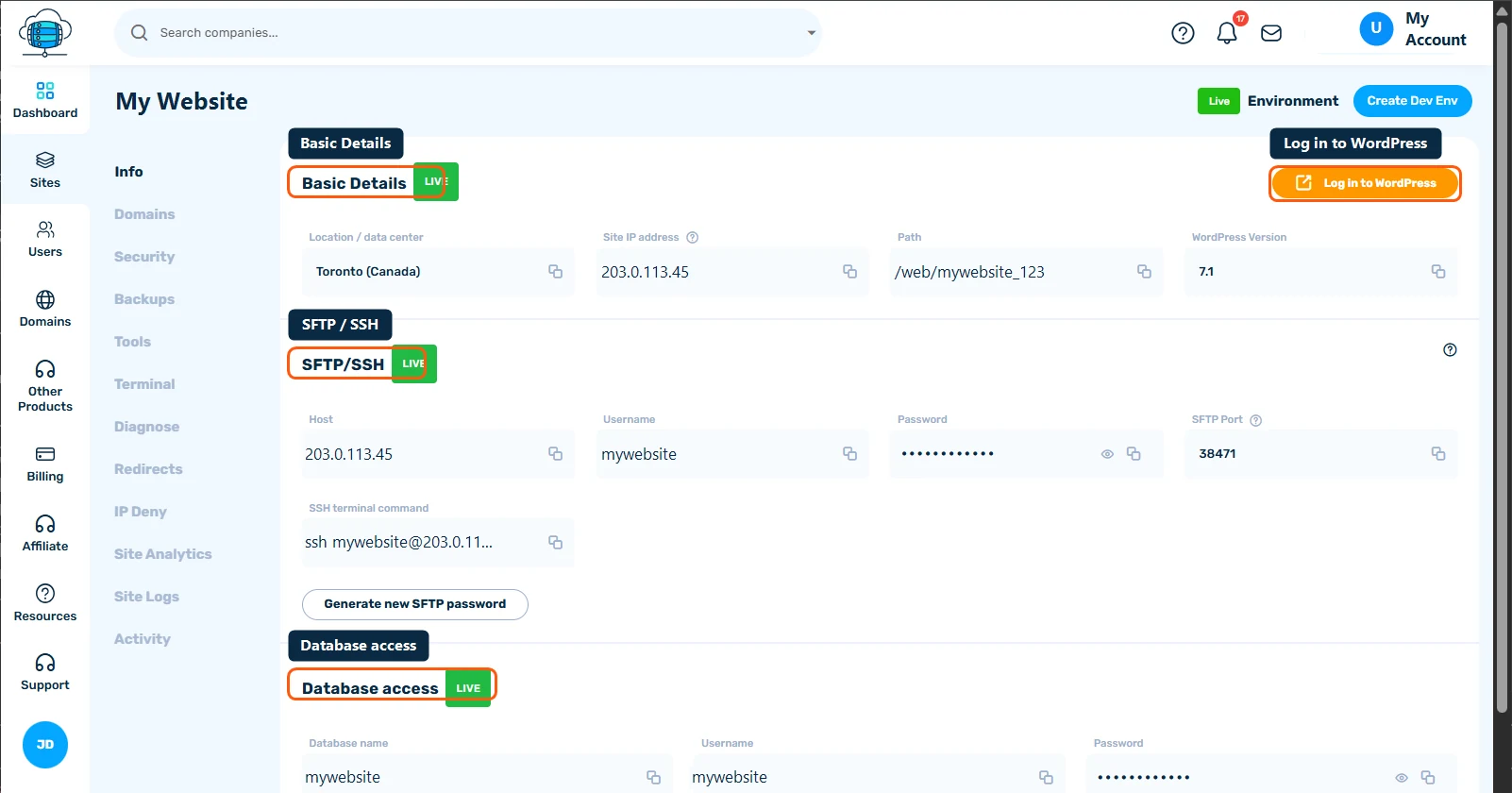
What if the one-click login doesn't work either?
- Try a private or incognito window. If you can log in there, clear the cookies for your site in your normal browser.
- Clear your site's cache from the Tools tab in case the login page itself is cached
- Open your site's IP Deny tab and check whether your IP address is on the block list. If it is, delete the entry or use Move to Whitelist.
- Open the Security tab, pick your domain and check the Security Rules sub-tab for any rule that matches your IP address or country. Disable or change it, or add an allow rule for your address from the Allow office IPs template so you are never blocked.
- If a security plugin locked you out, connect over SFTP and rename the plugin's folder in
wp-content/plugins(for example by adding-disabled). That switches it off so you can log in, then rename it back and adjust its settings. - If you're redirected to an old domain, open phpMyAdmin from the Info tab and check the
siteurlandhomevalues in the WordPress options table. Both should be your current address, includinghttps://. Take a manual backup before editing them. - If none of that helps, restore a backup from before the lockout - see Site Backups: Automatic, Manual & Downloadable
Is the browser asking for a username before the site even loads?
A plain browser pop-up asking for a username and password, before any WordPress page appears, is not WordPress. It is Password Protection, which puts the whole site behind a separate login. Use the username and password set when it was enabled, or click Disable on the Password Protection card in the Security category of your site's Tools tab.
When should I contact support?
Contact Support if none of the steps above work, or if you're not comfortable editing files or the database. We can get you back into your site even without the WordPress password, since access doesn't depend on it. Tell us your site name, which of the symptoms above you see, and anything you changed recently. See Getting Support: Tickets & Live Chat.
How do I avoid getting locked out again?
- Store your WordPress password in a password manager, and remember the one-click login is always there as a backup
- Add your own IP address with the Allow office IPs template in the Security tab's Security Rules before creating country blocks or tight security rules
- Give everyone who edits the site their own WordPress user instead of sharing one login, so one person's password change doesn't lock out the rest
