Accessing Your Site: SFTP, phpMyAdmin & One-Click WordPress Login
All of a site's access details are on its Info tab: SFTP/SSH and database credentials, an Open phpMyAdmin button that signs you in automatically, and a Log in to WordPress button that opens wp-admin without a password.
Where to Find Your Access Details
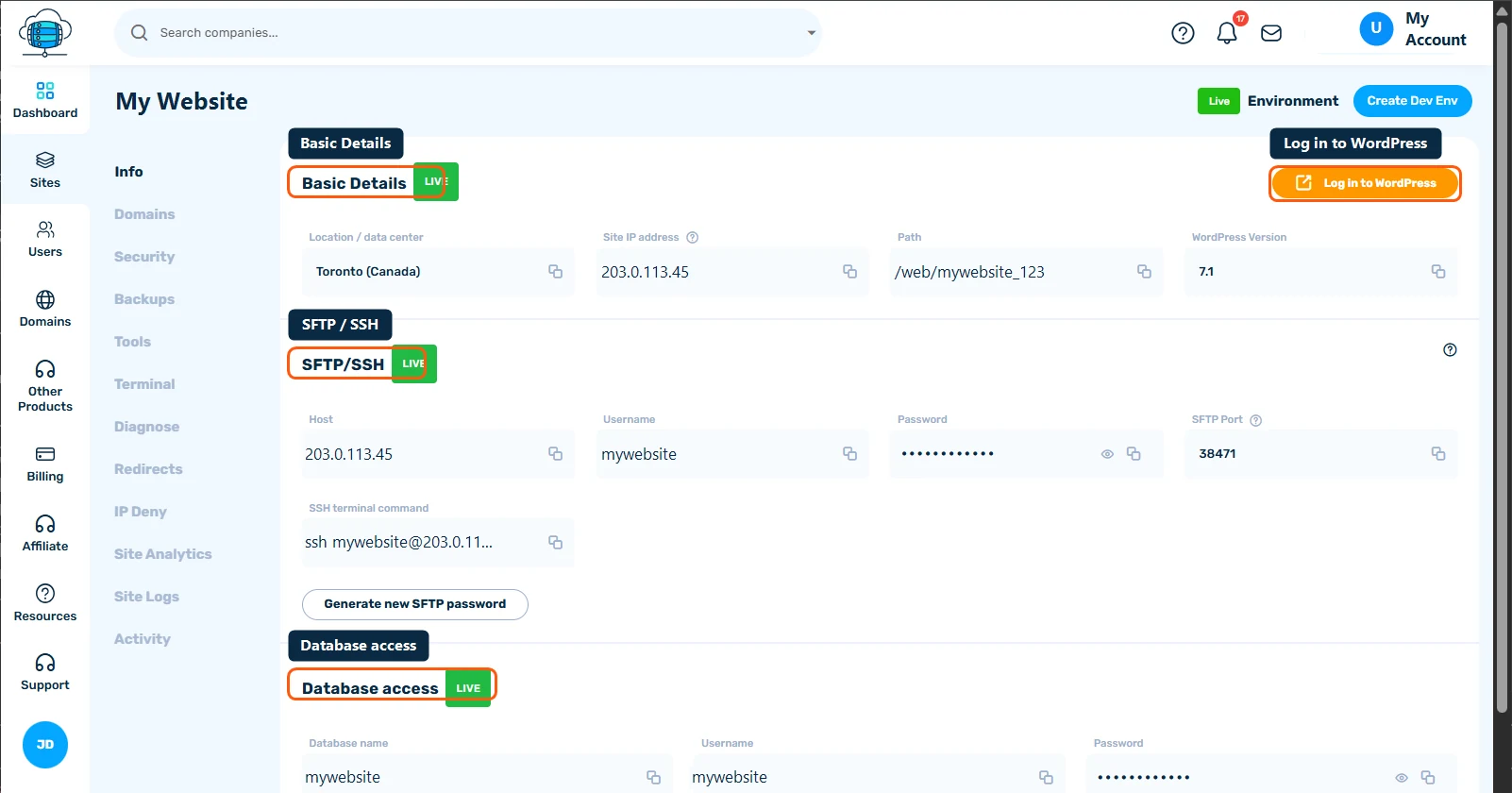
Every site's access credentials live in one place: go to Sites, click Manage on your site, and open the Info tab. Here you'll find your site's IP, server path, WordPress version, and all the credentials described below. Each value has a copy-to-clipboard button.
One-Click WordPress Login
You don't need to remember your WordPress admin password. Click Log in to WordPress on the Info tab and a new tab opens with you already logged in to wp-admin. This works even if you've changed your admin password inside WordPress.
SFTP / SSH Access
The SFTP/SSH section shows your host, username, password (click the eye icon to reveal, or copy it directly), and port - plus a ready-made SSH command you can paste straight into a terminal. Use these details in any SFTP client (FileZilla, WinSCP, Cyberduck) to upload or download files.
If you need to rotate the password - for example after a contractor finishes working on your site - click Generate new SFTP password. The old password stops working immediately, so update any saved connections.
Database Access
The Database access section lists your database name, username, and password. You'll need these if you connect with an external tool or configure a plugin that talks to the database directly. If you need the database password changed, contact Support.
phpMyAdmin
Click Open phpMyAdmin and a new tab opens with you signed in automatically - no credentials needed. From there you can browse tables, run SQL queries, and export your database.
Security Tips
- Never share your SFTP or database password in plain text - invite team members with their own accounts instead (see Inviting Team Members to Your Account)
- Generate a new SFTP password after giving temporary access to anyone
- Be careful in phpMyAdmin - changes are applied to your live database immediately
