My Website Is Slow
A slow WordPress site on HostBarrel is most often caused by caching being off or by one slow plugin. Make sure Site Cache is on in the site's Tools tab, then run Diagnostics from the Diagnose tab to see exactly where the time goes.
Why is my website slow?
Pages take several seconds to load, feel sluggish, or visitors are complaining about speed. Before changing anything, note whether every page is slow or only some, and whether it's slow for visitors or only while you're logged in to WordPress. Pages for logged-in users and store checkouts are usually built fresh on every visit rather than served from the cache, so they are naturally slower than public pages.
What makes a WordPress site slow?
- Site Cache is turned off, or was cleared and hasn't rebuilt yet. The Cache sub-tab in Site Analytics shows your hit rate; a low rate means most visitors get a page built from scratch.
- A specific plugin or database query is slow (very common - and easy to find with Diagnostics)
- Pages can't be cached because a plugin sets cookies on every page. The Remove Set-Cookie tool can fix this on sites that don't rely on cookies, such as sites without logins or a cart.
- Slow calls to outside services, such as license checks or third-party APIs, which hold up the page until they answer
- Large, unoptimized images
- Too many active plugins
- A surge of bot traffic. Traffic Shield in your site's Security tab shows how your domain's traffic splits into groups such as Attack Traffic, Suspicious Automation, AI Crawlers and Visitors.
How do I find what's slowing my site down?
- Confirm Site Cache is on in the Server Settings category of your site's Tools tab
- Click Start Diagnostics in the Diagnose tab and reload your site a few times - it will show you exactly which plugin, theme, or query is taking the most time
- Look at Slowest Plugins / Themes first, then Database Queries and External HTTP. Whatever takes the most time per request is where to start.
- Click Stop Diagnostics when you have enough data, as profiling adds a small overhead
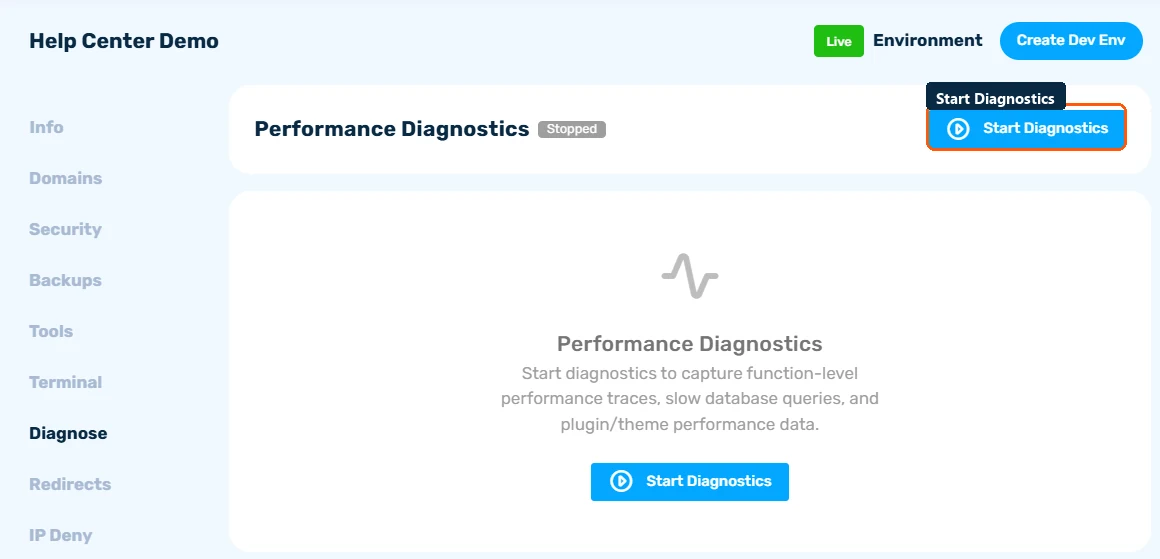
For a full walkthrough of the results, see Diagnosing Site Performance Issues.
How do I speed my site up?
- Compress large images with a plugin like ShortPixel, or replace obviously oversized files
- Deactivate plugins one at a time (starting with anything Diagnostics flagged) to isolate the slow one
- Replace a slow plugin with a lighter alternative, or ask its author about caching or settings that reduce the work it does
- If slow external calls show up in Diagnostics, ask the plugin's author whether those calls can be cached or made in the background
- If bots make up a large share of your traffic, open your site's Security tab and choose a Traffic Shield level such as Balanced, which blocks attack traffic and challenges suspicious automation before it reaches WordPress. You can also turn on Auto-Challenge in the Challenge Mode sub-tab, which switches the visitor challenge on when traffic passes a requests-per-second threshold you set. Security settings are available for custom domains with active SSL.
- Clean up the database with a plugin such as WP-Optimize to clear old revisions, spam comments and expired transients
More general tips are in Speed Up Your WordPress Site.
When should I contact support?
Contact us if your site is still slow with caching on and nothing obvious in Diagnostics, if it's slow even on simple pages, or if the slowness started suddenly without any change on your side. Share your Diagnostics results with Support - the report tells us exactly where the time is going, which is much faster than us guessing from the outside. If your site regularly runs near your plan's limits with everything optimized, upgrading may be the right fix.
How do I keep my site fast?
- Leave Site Cache on, and use Clear Cache after changes rather than turning it off
- Run Diagnostics again after adding a new plugin, to catch a slow one early
- Resize images before uploading them
- Remove plugins and themes you no longer use
