I'm Not Receiving Email
When email to your domain doesn't arrive, first check the spam or junk folder, then check that your domain's MX records point to the email provider you actually use. Most missing-email problems come down to one of those two things.
Why am I not receiving email?
Email sent to an address at your domain never arrives, bounces, or lands somewhere unexpected. Email for your domain is delivered using your domain's DNS: other mail servers look up its MX records to find out where to send messages. If those records are missing, out of date or point to the wrong provider, mail goes nowhere, even if your mailbox is working perfectly.
If the sender received a bounce message, ask them to forward it to you. Bounces usually say exactly why delivery failed, such as "user unknown," "mailbox full" or a rejection by a spam filter.
What stops email from arriving?
- MX records for your domain don't point to your actual email provider
- Your MX records were lost when the domain moved. Pointing a domain at a new host or changing its nameservers can leave the old email records behind, so mail stops right after a DNS change.
- The message is landing in a spam or junk folder instead of the inbox
- The mailbox itself hasn't been created yet with your email provider, or is full
- Missing or incorrect SPF/DKIM records are causing messages to be marked as spam or rejected outright
- The domain has expired, which stops both the website and email
What should I check first?
- Check the spam/junk folder on the receiving end first - this resolves more "missing email" reports than any other step
- Confirm your MX records match exactly what your email provider (Google Workspace, Zoho Mail, cPanel email, etc.) asks for - see Understanding and Managing DNS Records
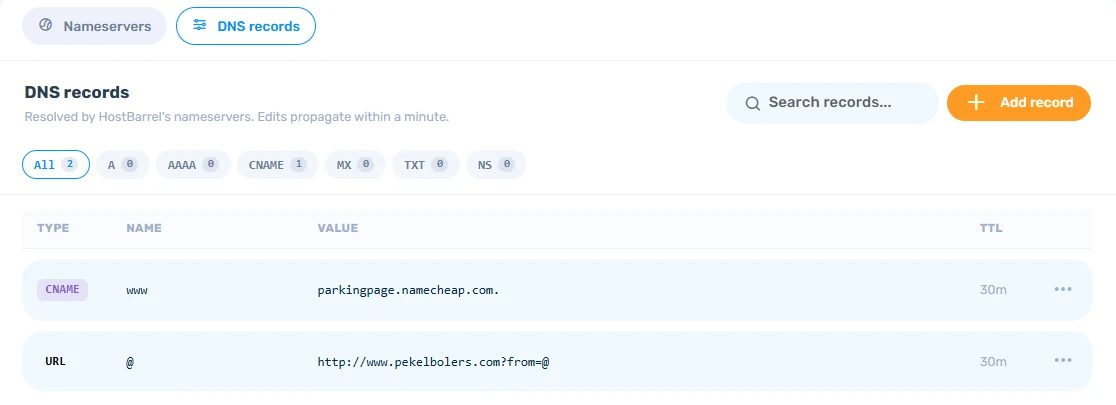
- Make sure you're looking at the DNS records where they actually take effect: wherever the domain's nameservers point. If the domain is registered with HostBarrel, that's usually the domain's DNS records tab under Domains.
What should I try next?
- Use a mail header/SPF checking tool (like
mxtoolbox.com) to confirm your MX, SPF, and DKIM records are all correctly set - Send a test email and check both directions - can you send out, receive in, or neither?
- Send a test from a personal address at another provider, such as a Gmail account, so you can see whether it bounces and why
- If your email is on a cPanel plan, open it under Other Products and choose Open webmail to check the mailbox directly, without any mail app in between. Use Email Accounts inside cPanel to confirm the address exists.
- If the address doesn't exist yet, create it with your email provider (on a cPanel plan, under Email Accounts). If your domain has no mail provider yet, set one up and point the domain's MX records at it.
How do I fix missing MX records after a DNS change?
Ask your email provider for its current MX, SPF and DKIM records, or find them in its setup instructions, and add them again wherever your domain's DNS is now managed. Leave any other existing records in place. Mail usually starts arriving again once the change has propagated, which can take a few hours.
When should I contact support?
Contact Support if your records match what your provider asks for and mail still doesn't arrive, or if you're not sure which records your domain needs. Include your domain name, your email provider, and whether the problem is sending, receiving, or both - email issues almost always trace back to one specific DNS record.
How can I stop email breaking again?
- Before changing nameservers or DNS providers, copy down every existing MX and TXT record
- Don't delete DNS records you don't recognize - they are often what keeps email working
- When pointing a domain to HostBarrel, change only the records HostBarrel asks for
