Understanding and Managing DNS Records
DNS records tell the internet where your domain's website and email live: A and CNAME records point to servers, MX records route email, and TXT records hold SPF, DKIM and verification codes. Edit them wherever your domain's nameservers point.
Where to Manage DNS
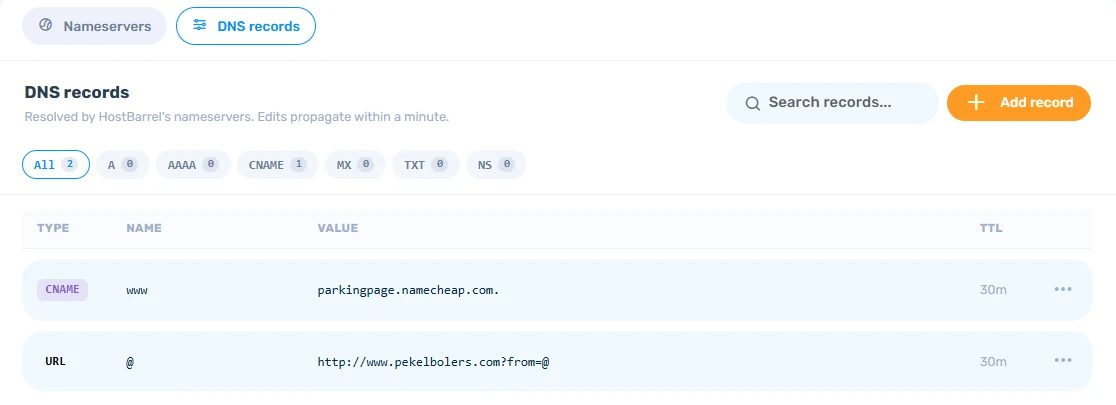
If your domain is registered with HostBarrel (or its nameservers point to us), you can manage records right from your dashboard - open the domain under Domains and switch to the DNS records tab. Otherwise, DNS records are managed at your domain registrar or DNS provider (e.g., Cloudflare, Namecheap, GoDaddy) - log in to their dashboard and look for "DNS Management" or "Zone Editor."
Common Record Types
- A Record: Points a domain or subdomain to an IP address
- CNAME: Creates an alias pointing to another domain name
- MX: Directs email to a mail server
- TXT: Stores text data - used for SPF, DKIM, and domain verification
Example: Adding a CNAME Record
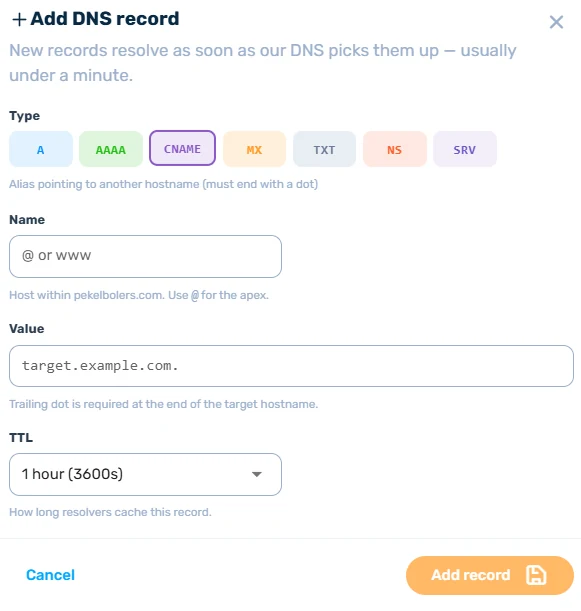
To point shop.yourdomain.com to another service, add a CNAME record with:
- Name: shop
- Type: CNAME
- Value: the target address provided by the service
Email DNS Records
If using an external email provider (like Google Workspace or Zoho Mail), you'll need to update your MX records and add TXT records for SPF and DKIM verification. Your email provider will give you the exact records to add.
⚠️ Don't Delete Records You Don't Recognize
An unfamiliar MX or TXT record is often critical for email delivery or domain verification with another service. If you're not sure what a record does, leave it - deleting it can silently break incoming email or an SPF/DKIM setup with no obvious error message.
Tips
- DNS changes take time to propagate - be patient
- Use
whatsmydns.netto check if your changes have propagated
