Inviting Team Members to Your Account
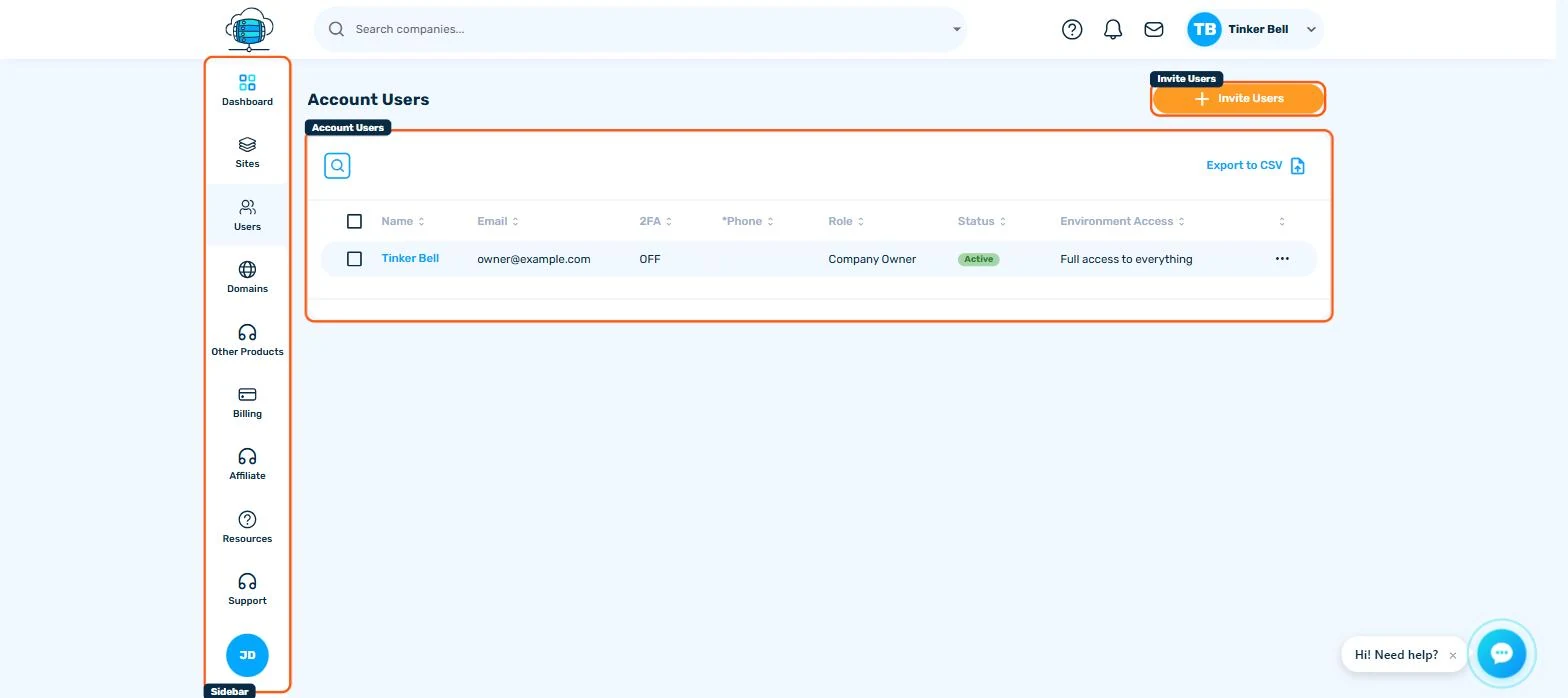
To give someone access to your hosting account, go to Users in the sidebar and invite them by email with a role. Each person gets their own login, so you never need to share your password.
Adding Team Members
You don't need to share your login credentials. HostBarrel lets you invite team members with their own accounts and permissions.
How to Invite
- Go to Users in your dashboard sidebar
- Click Invite Users
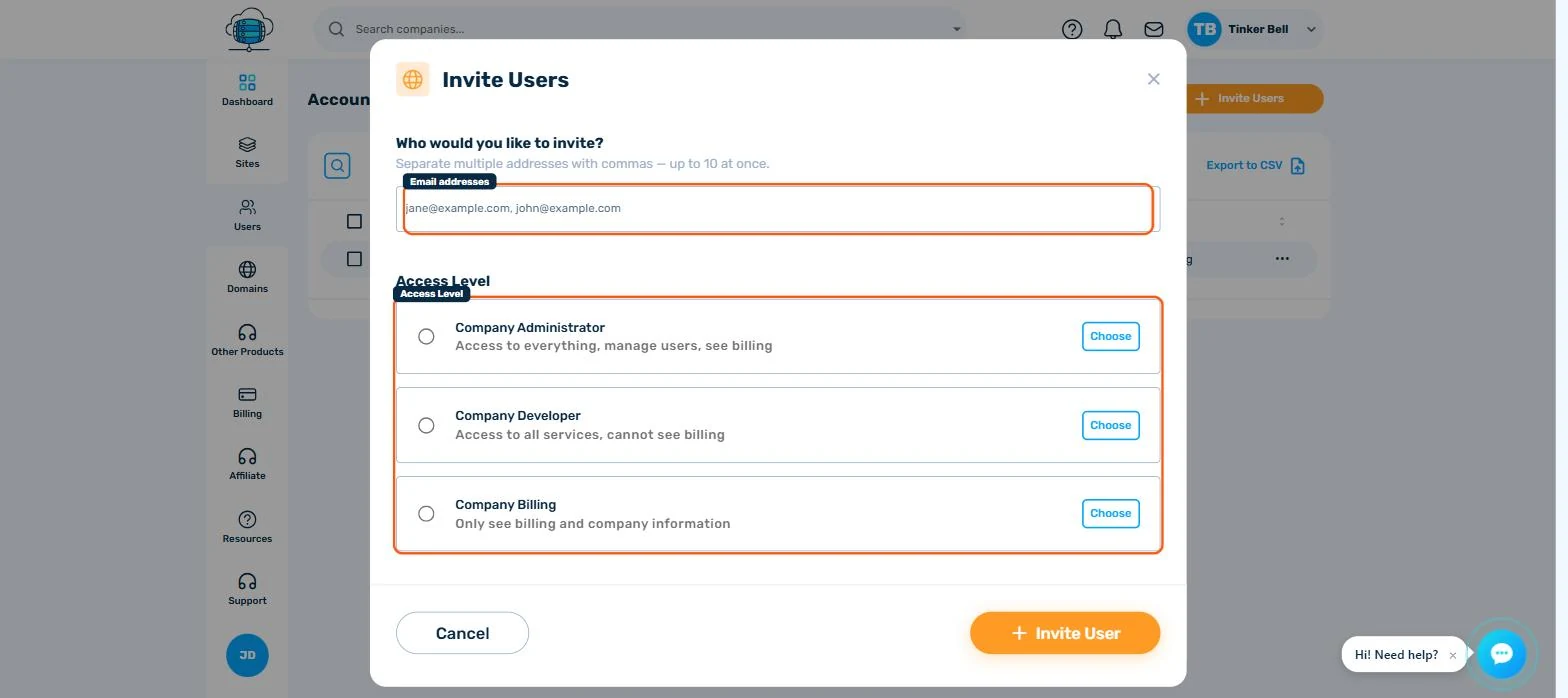
- Enter their email address (up to 10 at once, separated by commas) and choose an access level
- They'll receive an invitation email to create their account
Available Roles
- Company Administrator - Access to everything, including managing users and seeing billing
- Company Developer - Access to all services, but cannot see billing
- Company Billing - Can only see billing and company information
The person who owns the account is shown as Company Owner and can't be removed.
Managing Permissions
You can change a team member's role or revoke their access at any time from the Users page. Open the ⋯ menu on their row and choose Update to change their role or suspend them, Permissions to fine-tune what they can do, or Delete to remove their access.
Security Tip
Encourage all team members to enable Two-Factor Authentication (2FA) from their profile settings for an extra layer of security.
