Creating Your First Website
To create your first website, click Sites in your dashboard, then Add Site, give it a name and choose a server location. WordPress is installed for you automatically, usually in under a minute.
Before You Begin
Make sure you have an active hosting plan. If you haven't ordered one yet, compare our WordPress hosting plans and follow How to Order a Hosting Plan.
Step 1: Go to the Sites Page
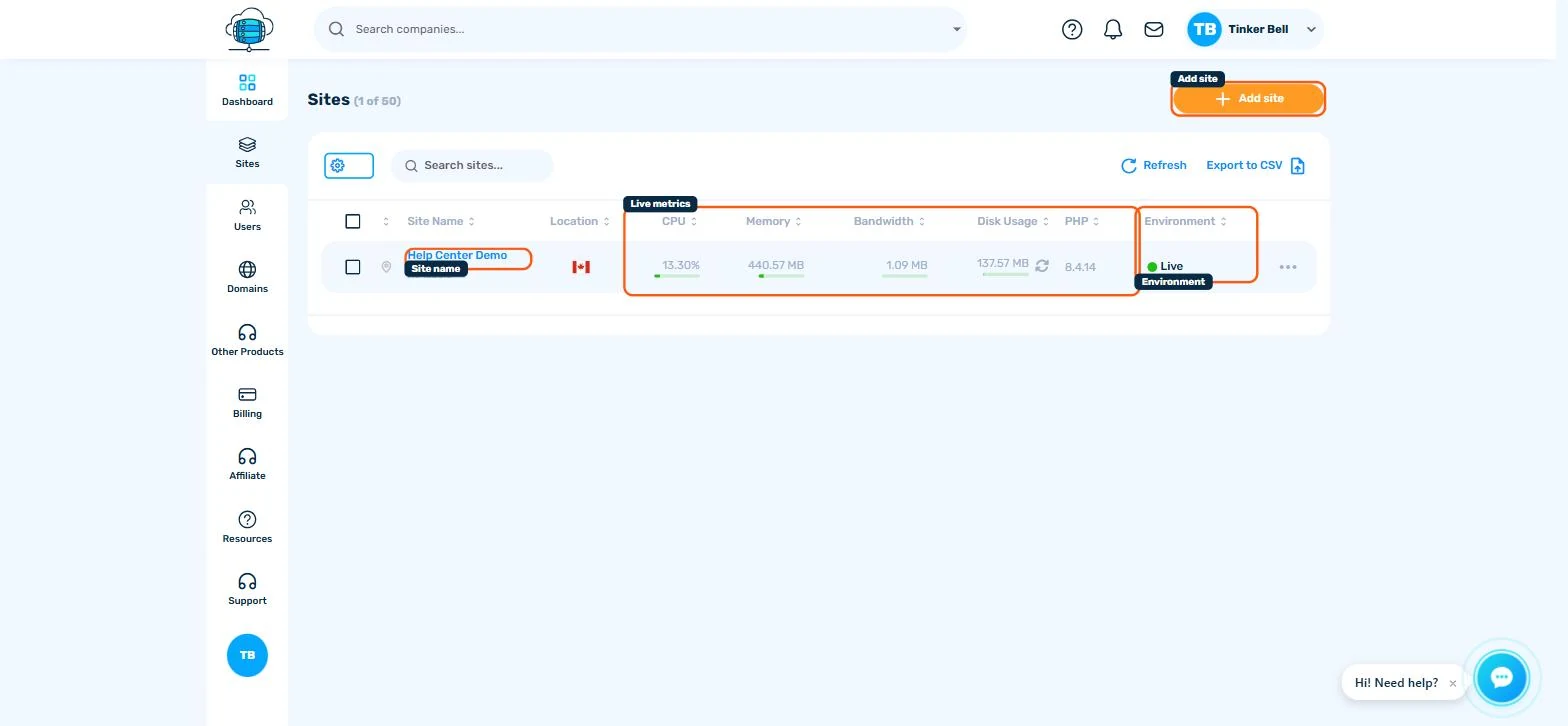
Log in to your HostBarrel dashboard and click Sites in the sidebar. Then click the Add Site button.
Step 2: Name Your Site
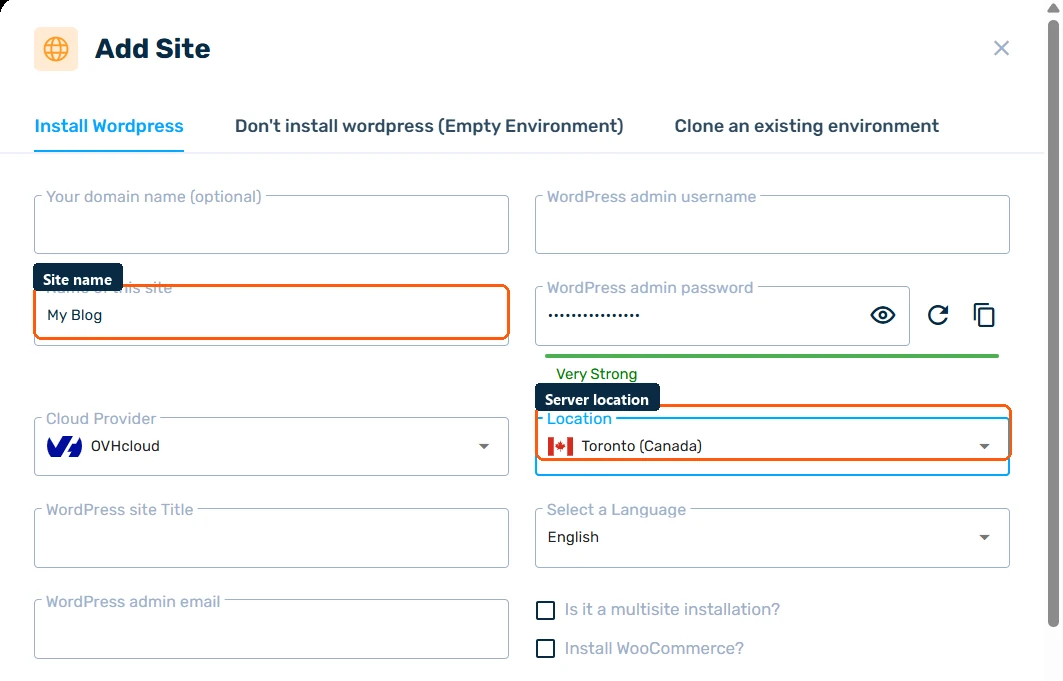
Enter a display name for your site - this is just for your reference in the dashboard (e.g., "My Blog" or "Company Website"). Then choose a server location closest to your target audience.
Step 3: WordPress Is Installed Automatically
HostBarrel automatically provisions a fresh WordPress installation for you. This includes:
- WordPress with the latest version
- A dedicated database
- A current PHP version (you can change it later)
- Nginx caching for fast load times
- A free
*.hostbarrel.cloudsubdomain to get started
Step 4: Access Your WordPress Dashboard
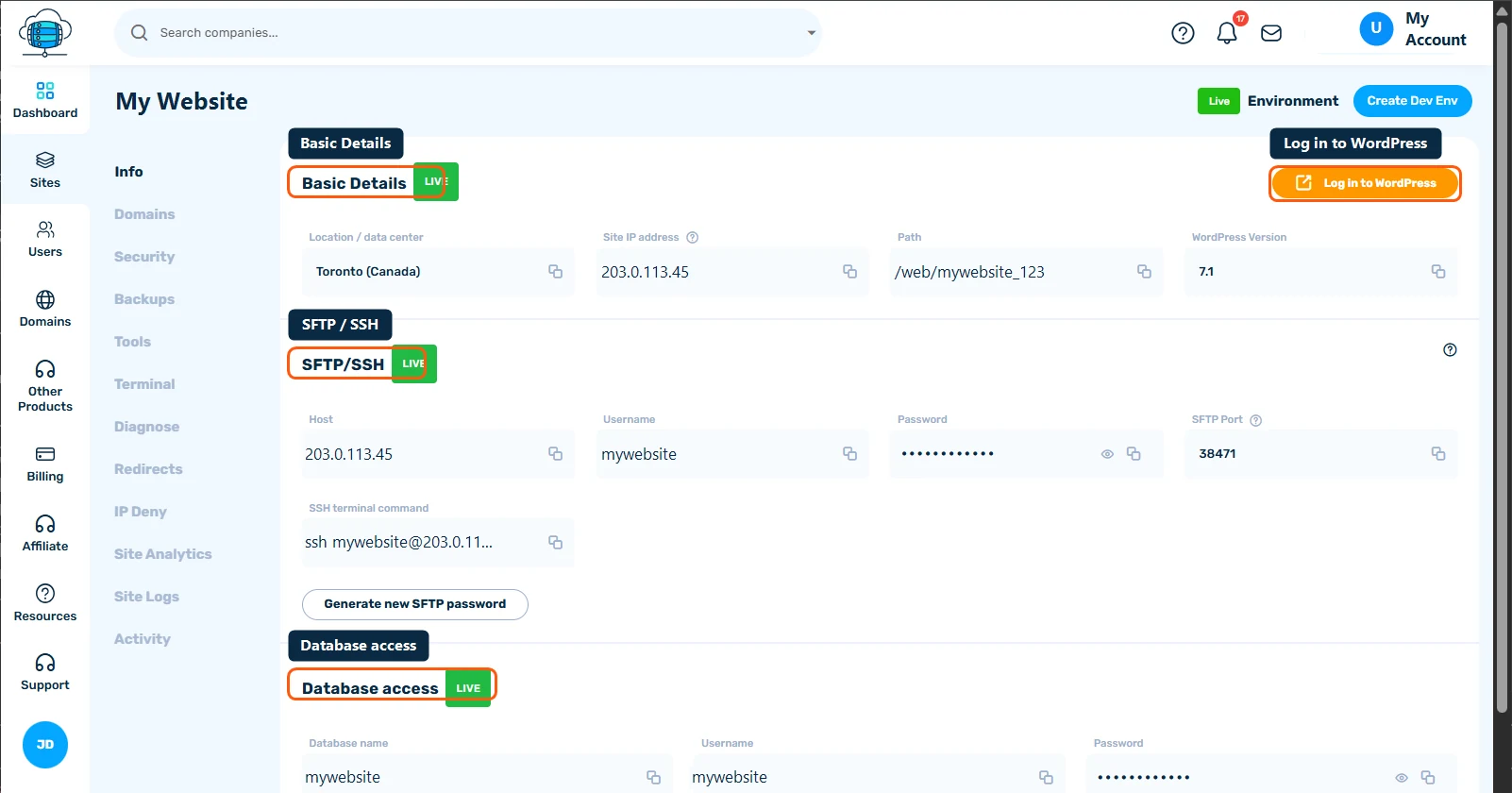
Once the site is ready (usually under a minute), click on the site name to see its details. The Info tab has your SFTP and database details and a one-click Log in to WordPress button, so you don't even need to type a password. Visit yourdomain.com/wp-admin to start building your site.
Step 5: Add a Custom Domain (Optional)
You can use the free HostBarrel subdomain right away. When you're ready for your own domain, open your site's Domains tab and click Add domains. SSL will be configured automatically once your DNS is pointed to HostBarrel.
Next Steps
Explore Essential WordPress Plugins for Your New Site and Speed Up Your WordPress Site to get the most out of your new website.
