Monitoring Site Analytics & Resource Usage
Each site's Site Analytics tab shows its traffic, bandwidth, cache hit rate and response codes, and the Resources page shows usage across your whole account. Turn on email alerts in Settings > Alert settings so you hear about a problem before you hit a limit.
Per-Site Analytics
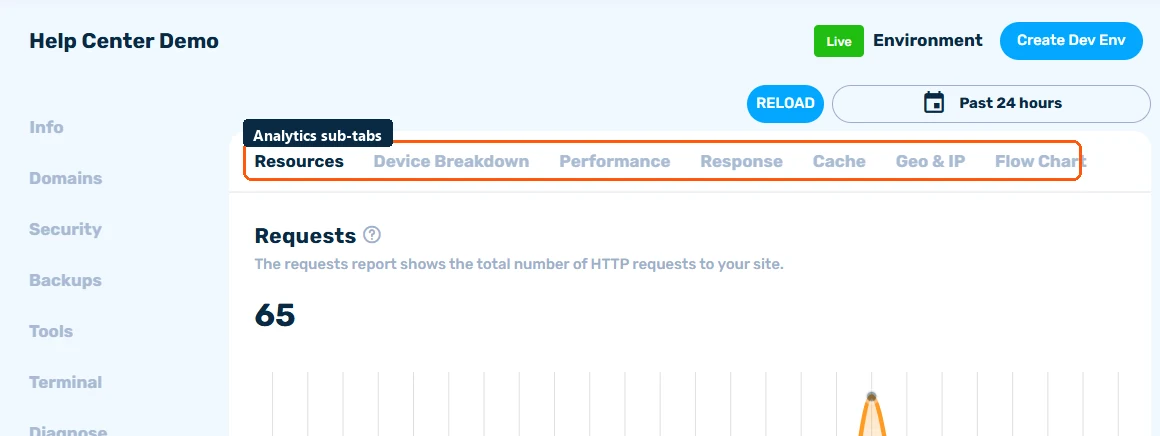
Open your site and go to the Site Analytics tab. Pick a date range (last 24 hours, 7 days, or 30 days) and explore the sub-tabs:
- Resources - bandwidth, disk usage, visits, and PHP throughput over time
- Device Breakdown - desktop vs mobile vs bot traffic
- Performance - response-time trends
- Response - status-code breakdown (2xx/3xx/404/4xx/5xx)
- Cache - cache hit rates; a high hit rate means most visitors are served from the fast nginx cache
- Geo & IP - top countries, cities, and visitor IPs
Account-Wide Resources
The Resources page in the sidebar aggregates usage across all your sites - bandwidth, disk, visits, and requests - with the same date-range filters plus a This Month view that matches your billing period. Use this to see how close you are to your plan's limits.
Usage at a Glance
The Sites list also shows per-site CPU, memory, bandwidth, and disk bars so you can spot a hungry site without opening it. Click the refresh icon to fetch current numbers.
Alert Settings
Don't watch graphs all day - let the platform tell you. In Settings > Alert settings you can toggle email alerts for:
- Site Down / Site Restored - we monitor your site and email you when it goes down and when it recovers
- High Bandwidth - approaching or reaching your bandwidth limit
- High Storage - approaching or reaching your disk limit
Running Out of Resources?
If you're consistently near your limits, consider upgrading your plan (see How to Upgrade Your Hosting Plan) or clearing unused files and backups to reclaim disk space.
