Creating & Managing Sites
Click Sites in the sidebar to see and create your sites, then open a site and use its Info tab to find its SFTP, SSH and database credentials, server IP and file path.
The Sites List
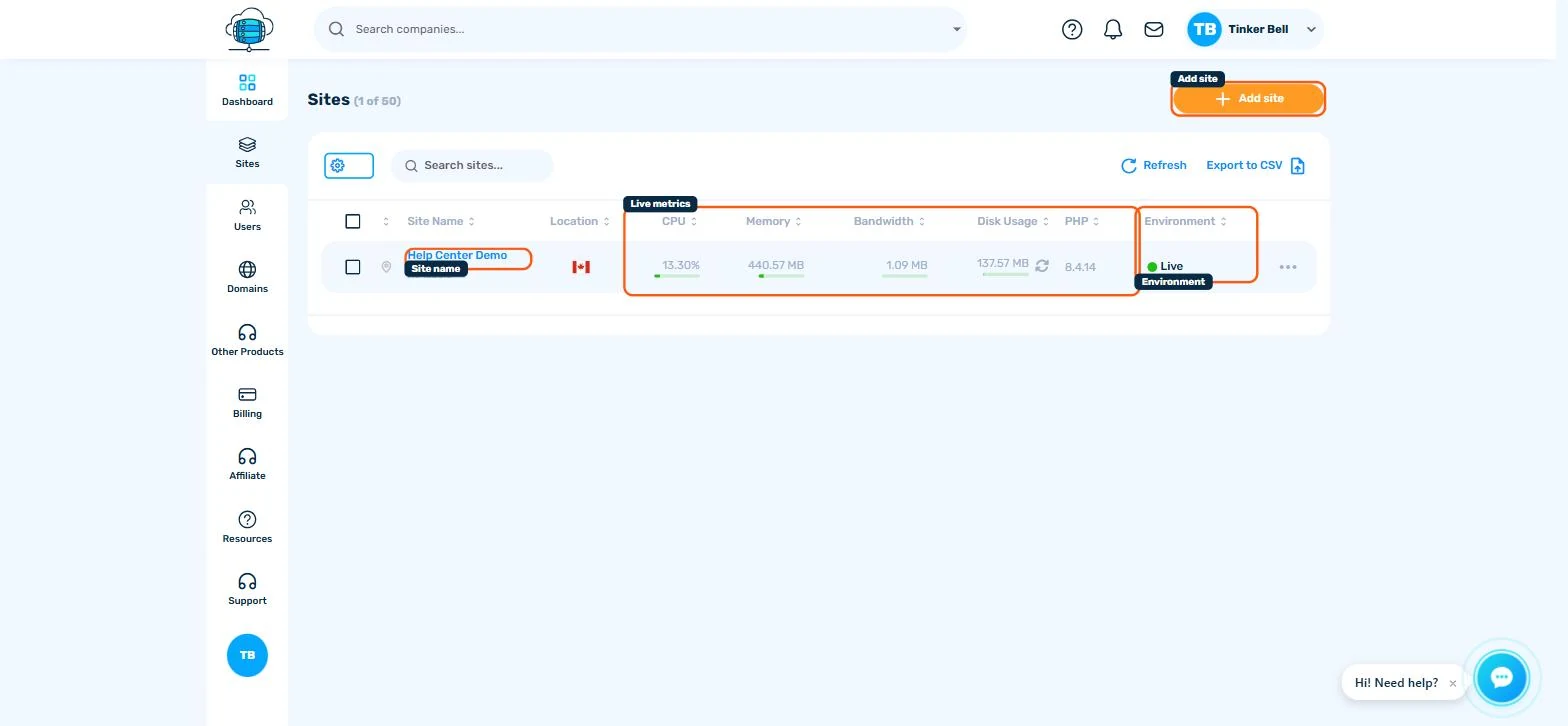
Click Sites in the sidebar to see every site on your account, with live columns for CPU, memory, bandwidth, disk usage, PHP version, and environment (Live or Dev). Click Add Site in the top-right to create a new one, or click any site's name to open its detail page.
The Site Detail Page
Clicking a site opens its detail page, organized into tabs down the left: Info, Domains, Security, Backups, Tools, Terminal, Diagnose, Redirects, IP Deny, Site Analytics, Site Logs, and Activity. The rest of this section covers the most-used tabs in detail.
The Info Tab
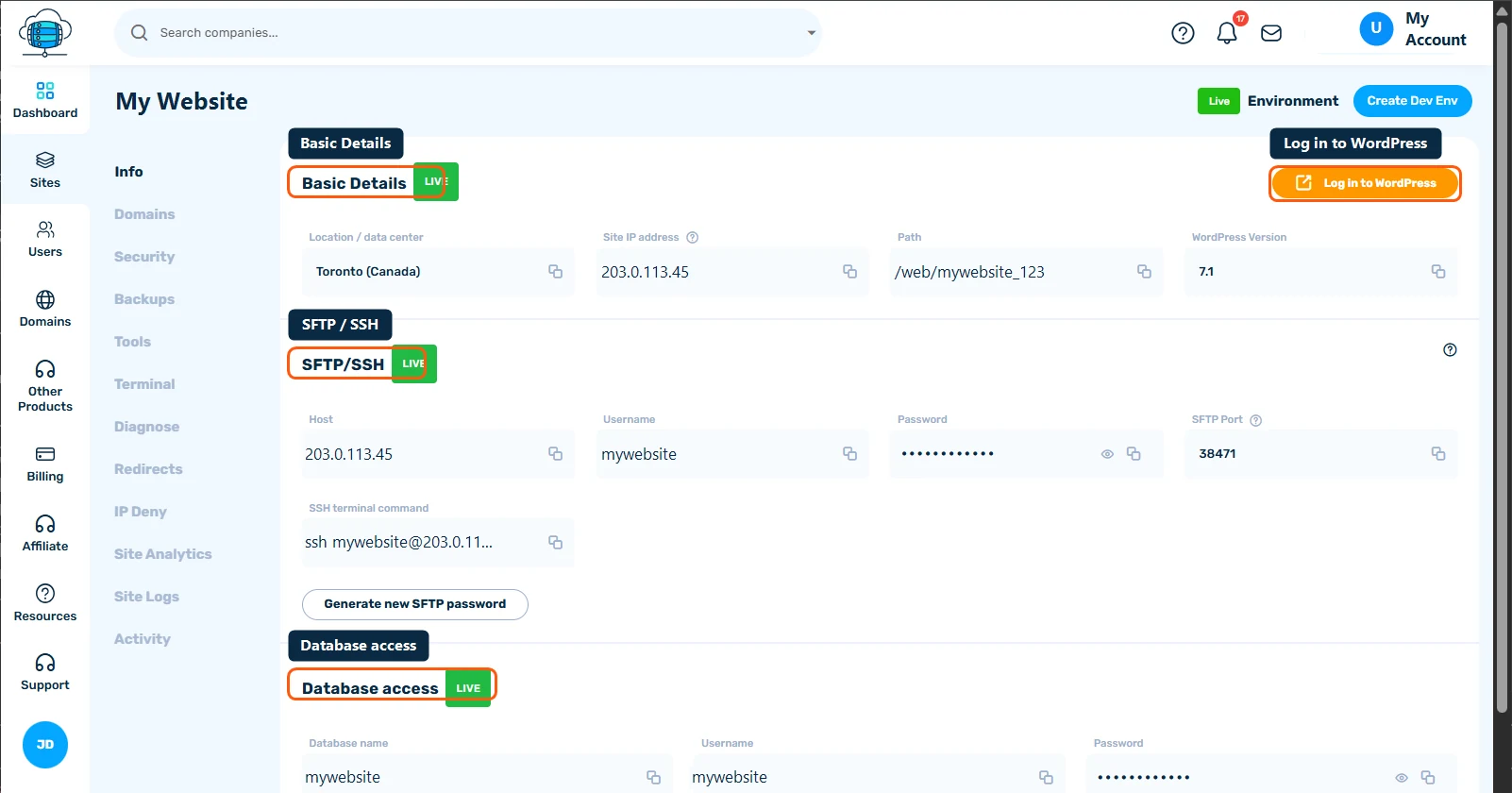
This is where every access credential for the site lives - see Accessing Your Site: SFTP, phpMyAdmin & One-Click WordPress Login for the full guide. At a glance:
- Basic Details - location, server IP, file path, and WordPress version
- SFTP/SSH - host, username, password, port, and a ready-to-paste SSH command
- Database access - database name, username, and password
Every value has a copy-to-clipboard icon, and passwords are masked until you click the eye icon to reveal them. Click Log in to WordPress in the top-right to jump straight into wp-admin without typing a password.
Live vs Dev
The green Live badge next to the site name shows which environment you're viewing. If you've created a Dev environment for this site, an environment switch appears here too - see Using Dev Environments & Push to Live for details.
