Site Tools Walkthrough
Site tools live in each site's Tools tab, grouped into Server Settings, Security, Development and Database. That is where you change the PHP version, restart PHP, clear the cache and switch on features such as geolocation.
Where to Find It
Open a site from the Sites page and click the Tools tab. Tools are grouped into categories on the left - Server Settings, Security, Development, and Database - with a badge showing how many tools are in each, and a search box in case you know what you're after.
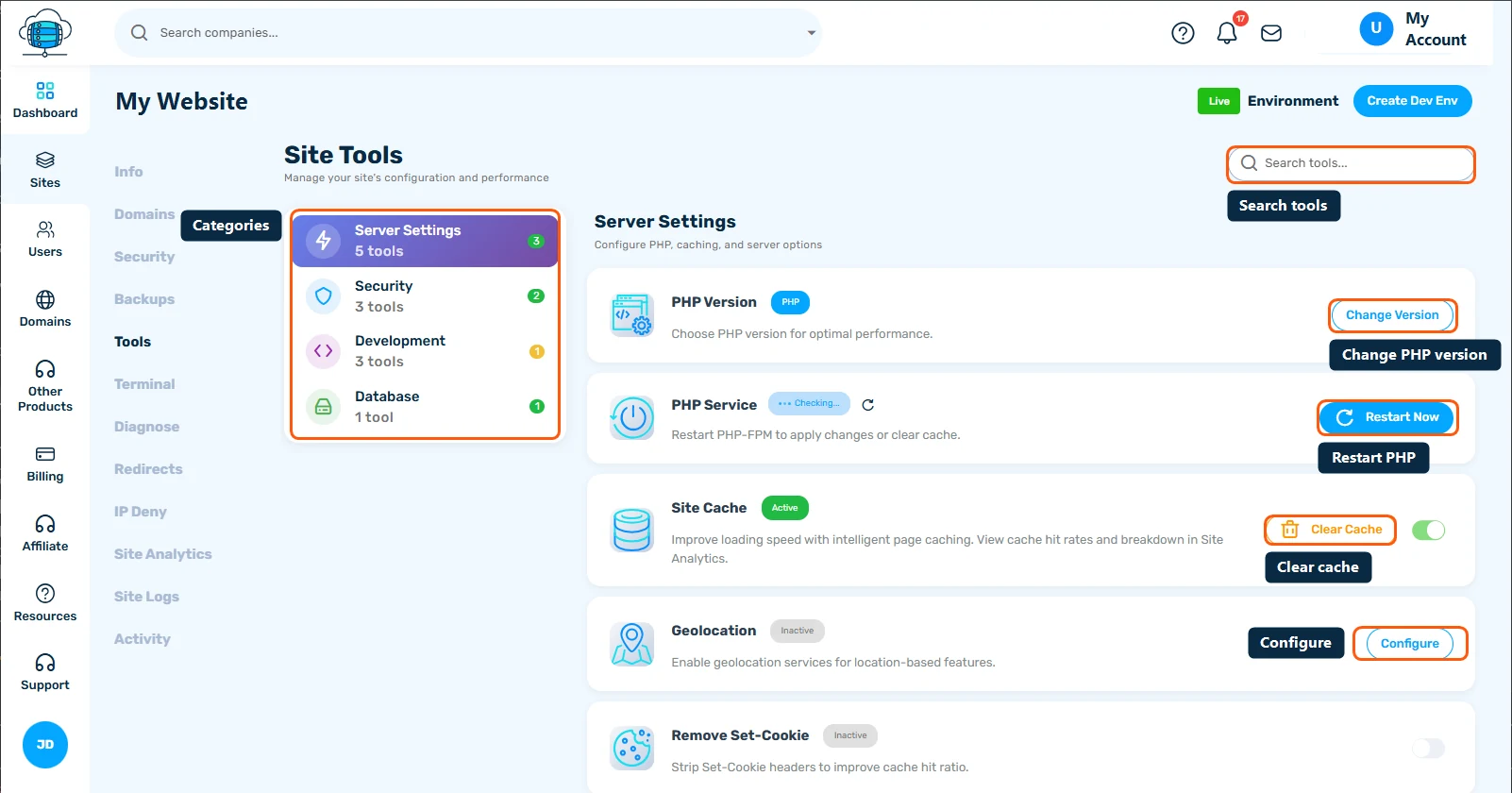
Server Settings (Pictured Above)
- PHP Version - click Change Version to switch between supported PHP versions
- PHP Service - click Restart Now if your site hangs or a PHP change needs a fresh start
- Site Cache - toggle nginx caching on/off, or Clear Cache after making changes
- Geolocation - click Configure to enable country- or city-level visitor data for geo-aware plugins
- Remove Set-Cookie - strips unnecessary
Set-Cookieheaders so more pages can be cached
The Other Categories
Click Security, Development, or Database in the left panel to switch categories. Security covers password protection, Force HTTPS, and custom SSL certificates. Development covers Search & Replace across your WordPress database, WP debugging and the ionCube Loader. Database has a one-click Open phpMyAdmin button. See Advanced Site Tools: Password Protection, Force HTTPS & More and Using Site Tools: PHP, Caching & Logs for what each toggle actually does.
