Backups & Restore Walkthrough
Every site is backed up automatically each day, and you can restore any snapshot from the site's Backups tab using the Restore button on its row. Manual snapshots and downloadable copies are in the same tab.
Where to Find It
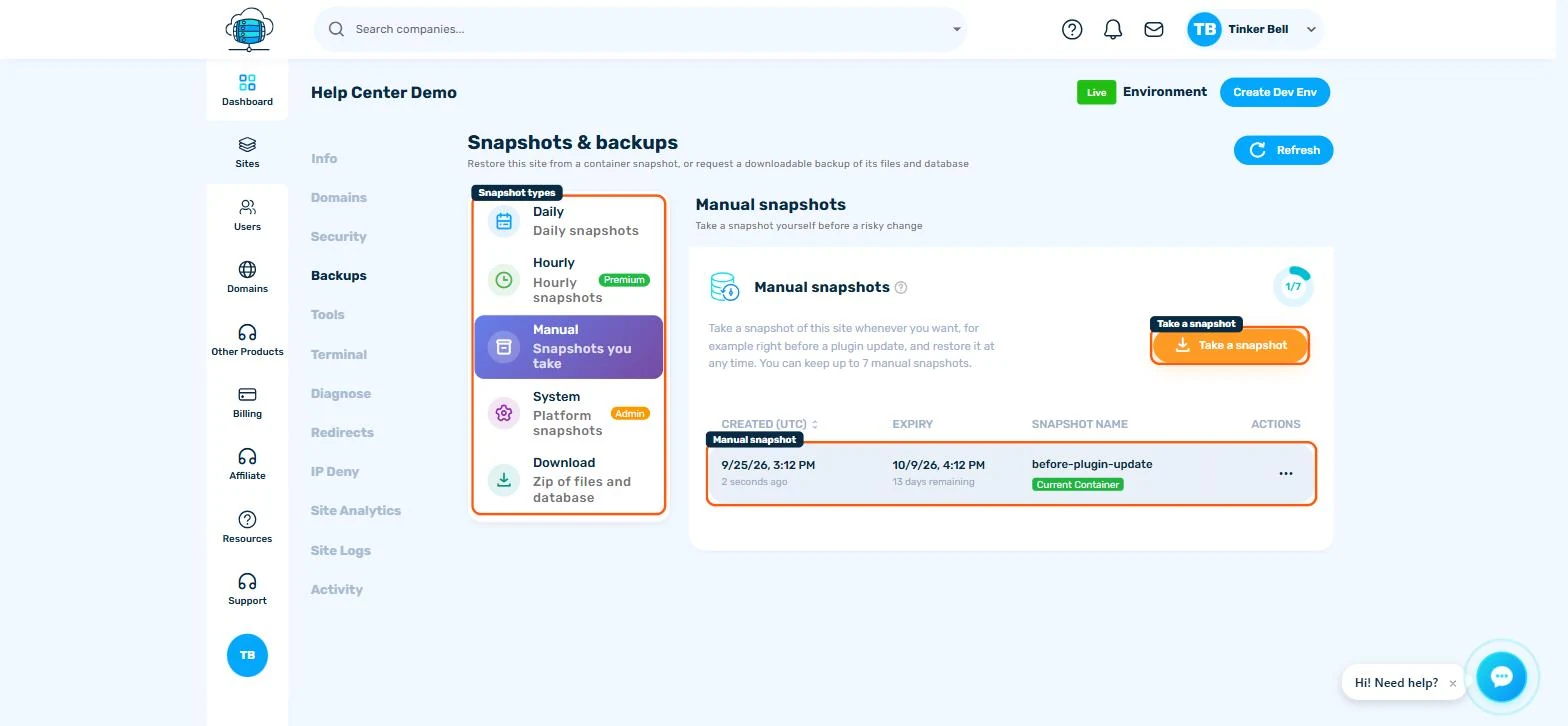
Open a site and click the Backups tab. Snapshot types are listed on the left, each with its own retention policy.
Snapshot Types
- Daily - automatic, taken every 24 hours, kept for 14 days. Nothing to configure.
- Hourly (Premium add-on) - taken every hour, kept for 7 days, for sites that need tighter recovery points.
- Manual - snapshots you trigger yourself before a risky change. Subject to a per-site limit, so delete old ones you don't need.
- System (Admin) - platform-level snapshots, visible for reference.
- Download - generate a downloadable zip of your files and database for an offline copy.
Restoring a Snapshot
Pick the category, find the snapshot by its creation date (newest first), and click Restore on its row. You'll be asked to confirm, since restoring replaces your current files and database with the snapshot's contents.
See Site Backups: Automatic, Manual & Downloadable for the full guide, including how to keep a downloaded copy off-site.
