How to Install WordPress on HostBarrel
You don't install WordPress by hand on HostBarrel: click Sites, then Add Site, and WordPress, its database and a free subdomain are set up automatically, usually in under a minute.
Before You Begin
Make sure you have an active hosting plan. If you haven't ordered one yet, see our WordPress hosting plans and How to Order a Hosting Plan.
Step 1: Create a New Site
Log in to your HostBarrel dashboard and click Sites in the sidebar. Click the Add Site button to start the process.
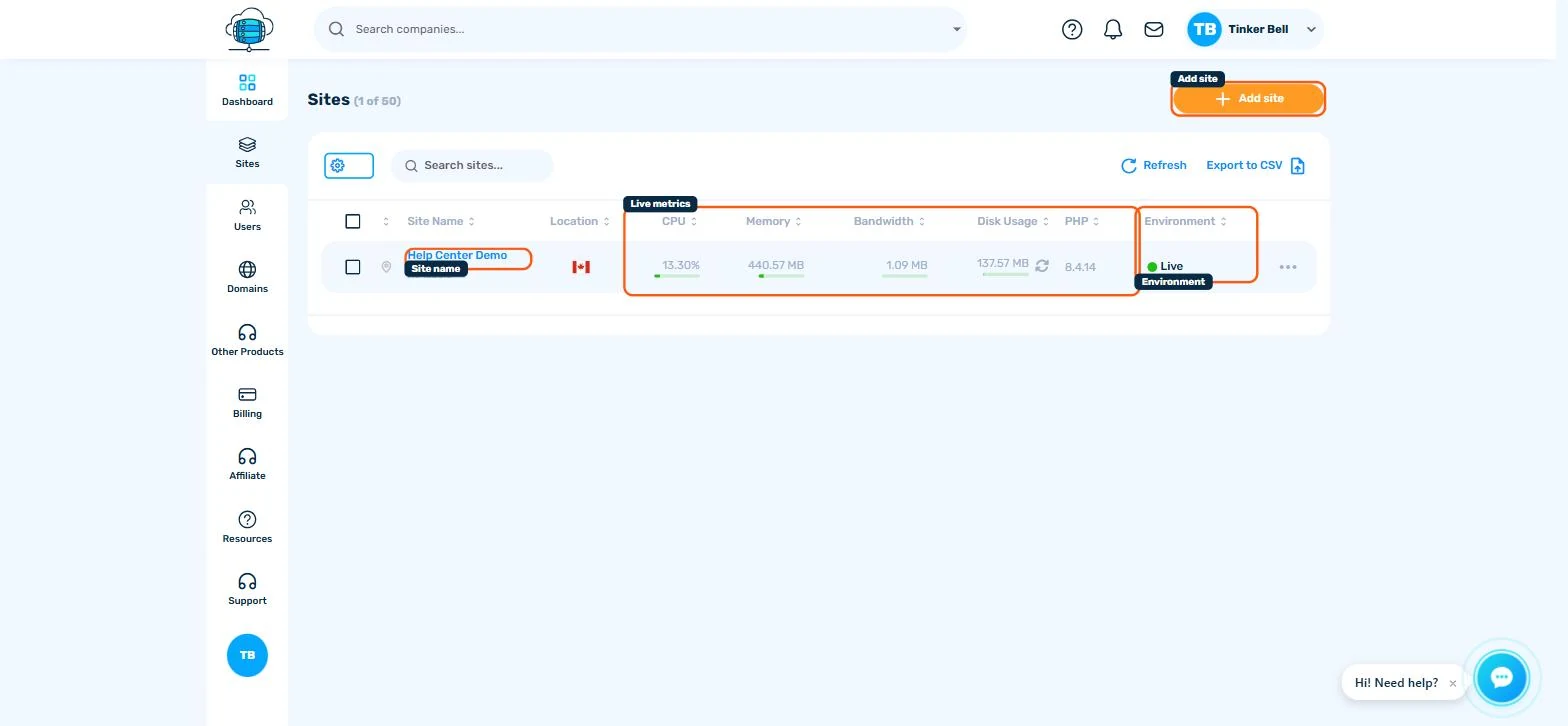
Step 2: Configure Your Site
Fill in the following details:
- Site Name: A display name for your reference (e.g., "My Blog")
- Server Location: Choose the region closest to your visitors for the best performance
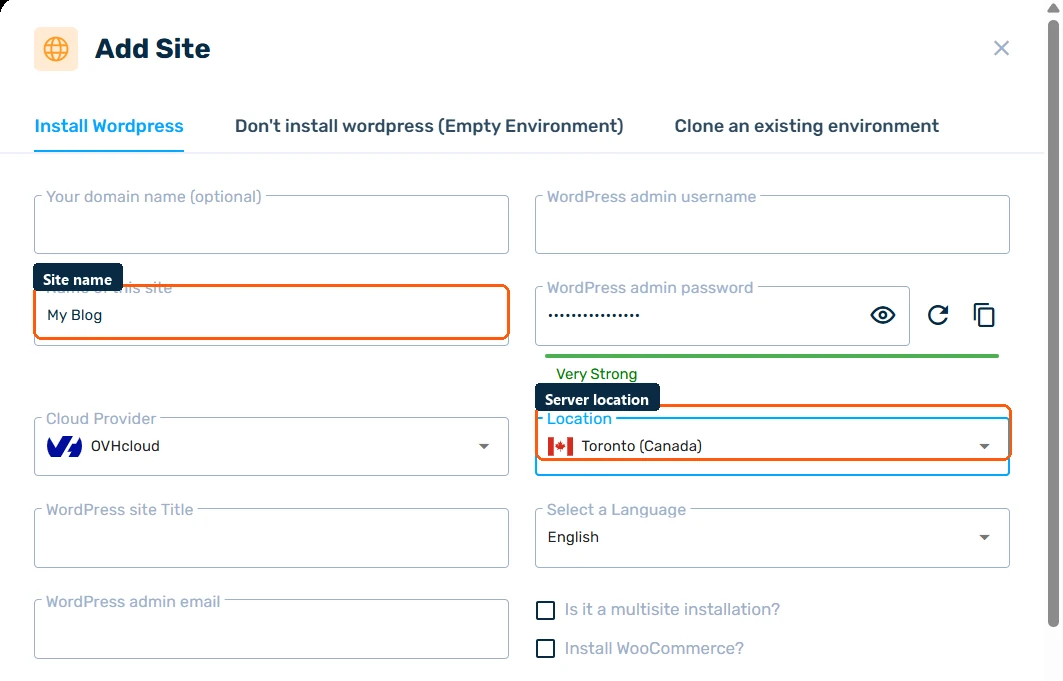
Step 3: Automatic Setup
Click Create and HostBarrel will automatically provision your site. This includes installing WordPress, setting up a database, configuring nginx, and assigning a free *.hostbarrel.cloud subdomain. The whole process usually takes under a minute.
Step 4: Access WordPress
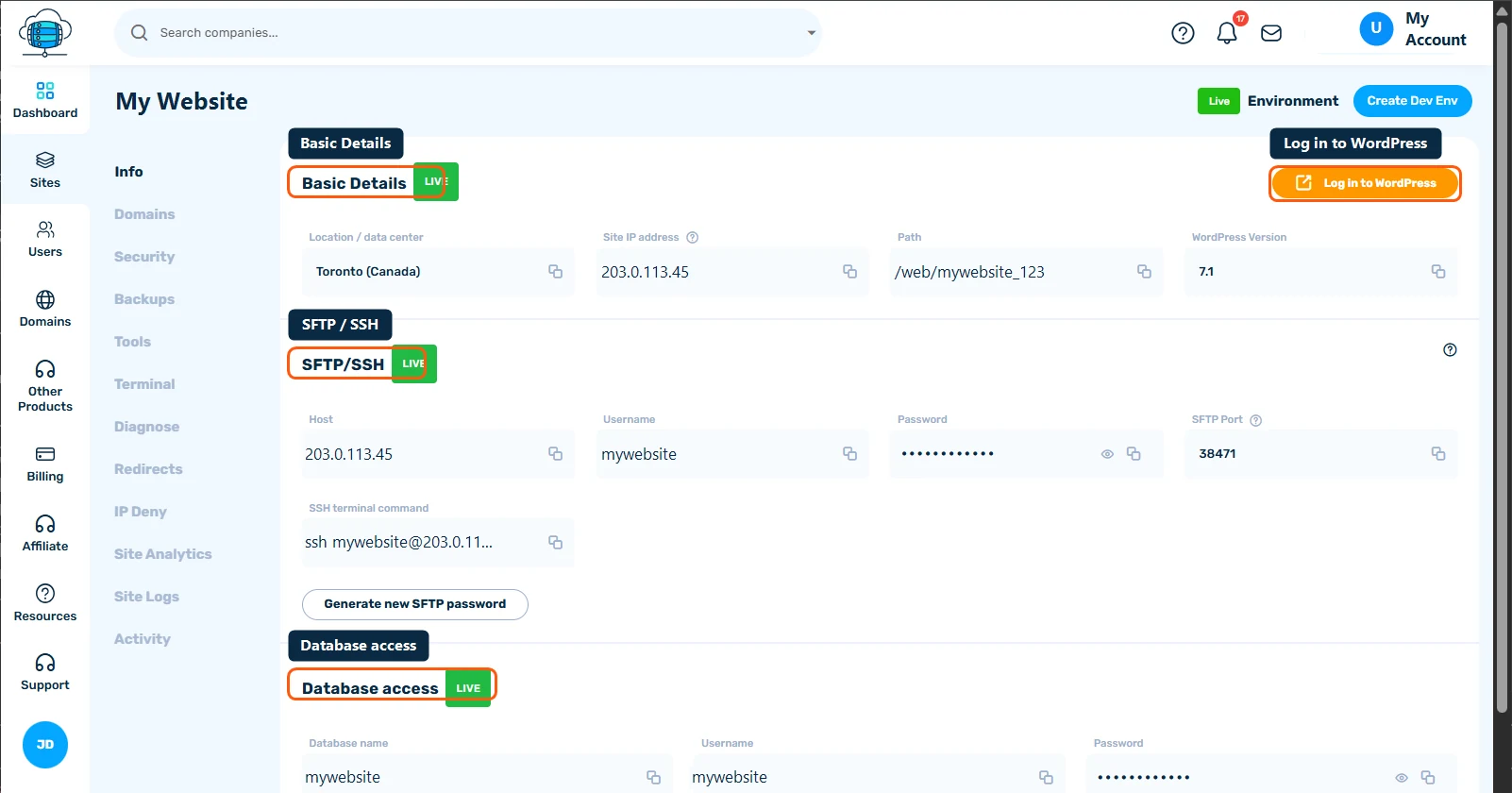
Once ready, click on your site to view its details. You'll find your WordPress admin URL there - typically yoursite.hostbarrel.cloud/wp-admin. The quickest way in is the one-click Log in to WordPress button on the site's Info tab, which skips the password entirely.
Next Steps
After installation, start customizing your site with themes and plugins. Check out Essential WordPress Plugins for Your New Site and Speed Up Your WordPress Site.
