Web Projects: Reviewing Your Website
Table of Contents
The Web Projects page in the HostBarrel Hub is where you follow a website our team is building for you. You open the preview, click on a page to leave comments, and approve the website when it is right. It goes live only after you approve. This guide covers free website creation projects, our free design and build of a static website.
Who Sees Web Projects
Web Projects is in the left sidebar for anyone whose role can view Sites.
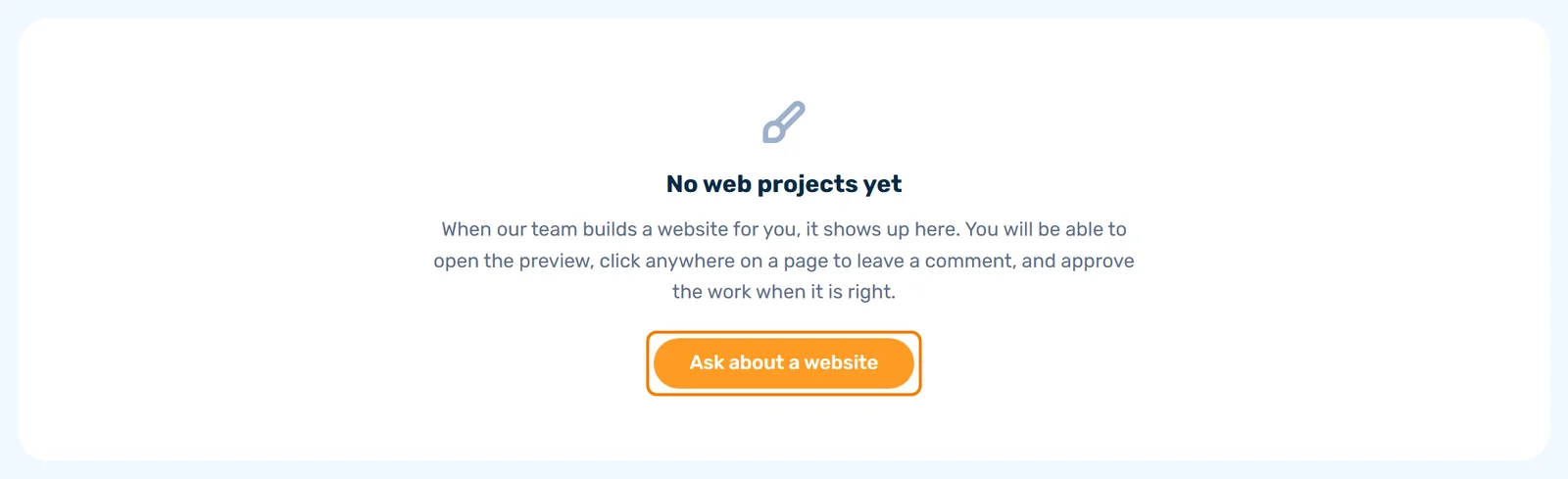
With no project yet, the page says No web projects yet and offers an Ask about a website button that opens Support. To ask for a build, send the free website creation request form.
Any role that can view Sites can read a project. Commenting, sending messages, starting a round and approving need permission to manage Sites. With a view-only role, Your review and Messages each show a note that your role can read but not write, and the page says who can.
The Project List and Stages
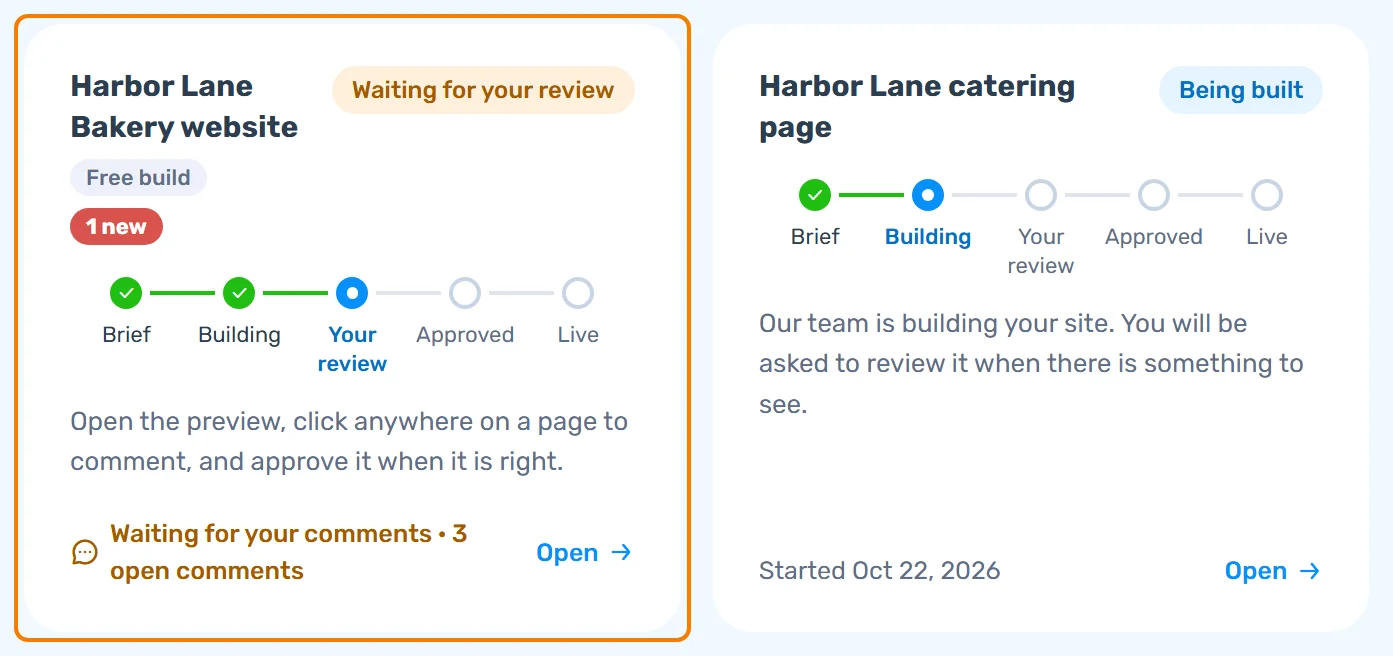
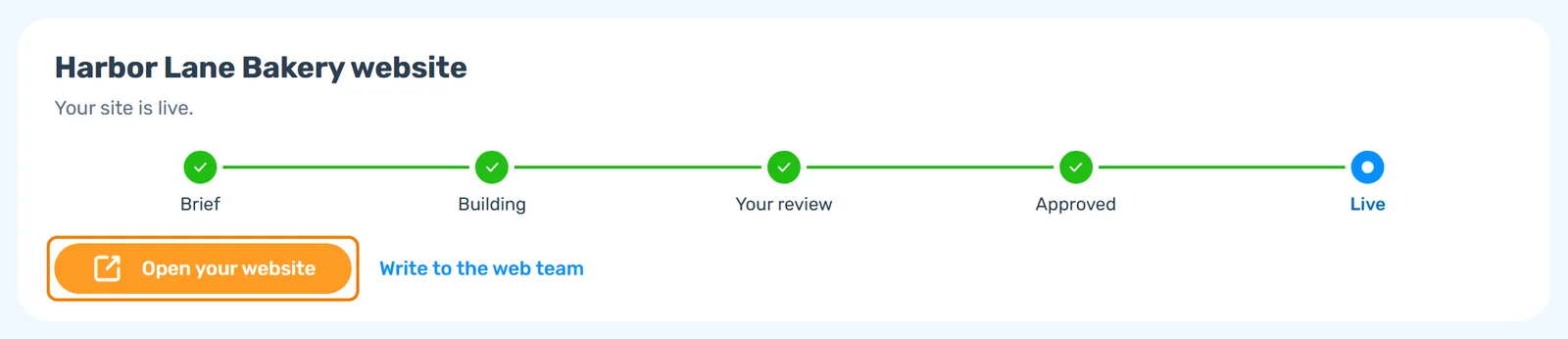
Each project card shows five steps and a status:
- Brief (Getting started) - We are gathering what we need from you
- Building (Being built) - Our team is building your site
- Your review (Waiting for your review) - Open the preview, comment, and approve when it is right
- Approved - The work is approved and we put it live next
- Live - Your site is live
A cancelled project shows Cancelled instead. The Free build tag marks a free website creation project, a red new tag counts unread messages, and Waiting for your comments shows how many comments are still open. Click a card to open the project on the tab that needs you.
The Project Page
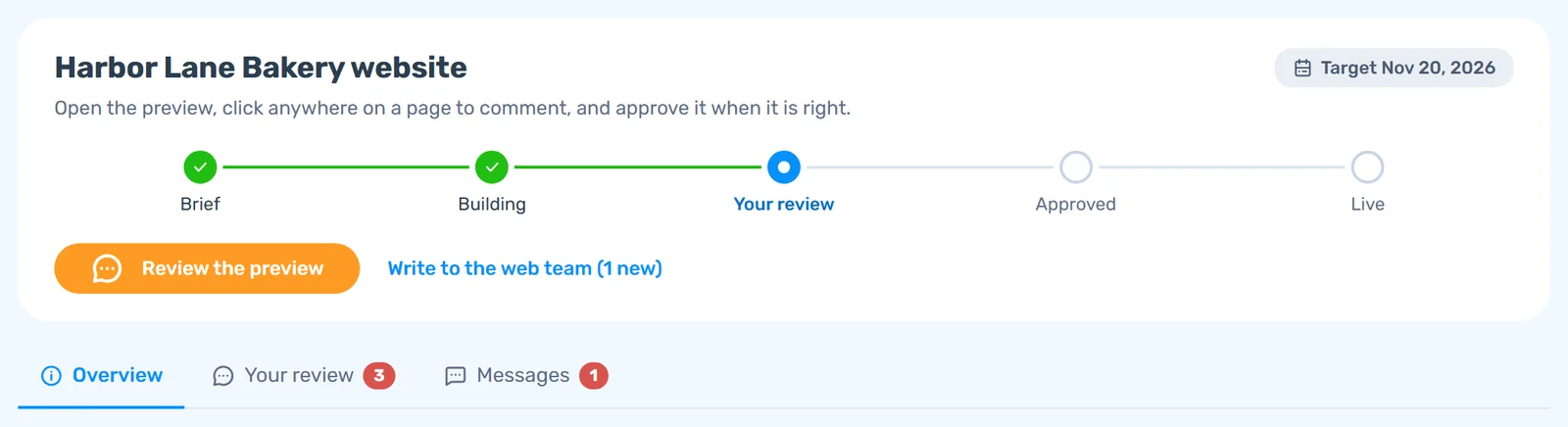
The top of the page says what happens next, with the five steps below it and one button when there is something for you to do. A Target date may appear beside the title. Target dates are estimates, not a guaranteed delivery date. Below that are three tabs:
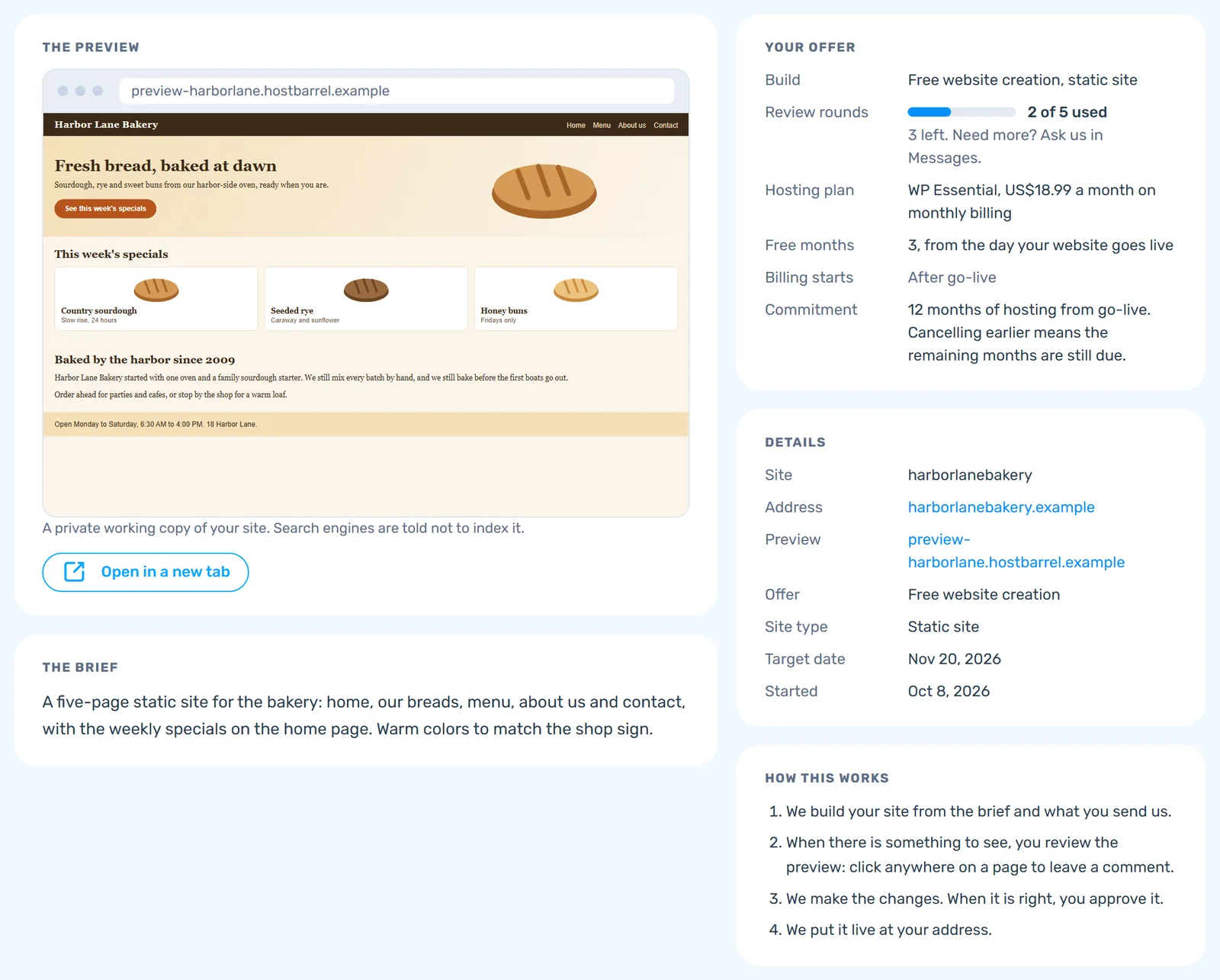
- Overview - THE PREVIEW, THE BRIEF, YOUR OFFER, DETAILS and HOW THIS WORKS
- Your review - The preview with comments pinned to it
- Messages - The conversation with the web team and any support tickets about the project
The Preview
When the preview is ready, THE PREVIEW shows a small view of your site. Open in a new tab opens it full size. It sits on a private address, and search engines are told not to index it. Until it is ready, the card says so.
Leaving Comments and Pins
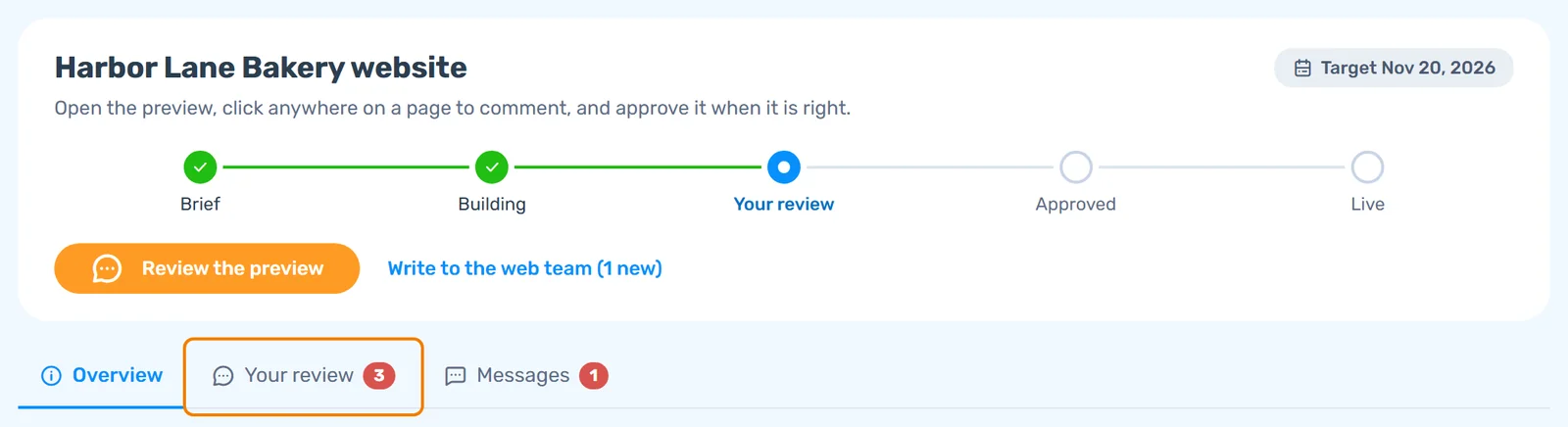
Step 1: Open the Your review tab
Open the Your review tab. If it says The preview is ready for your comments, click Start commenting. That opens your first round.
Step 2: Click the spot you want changed
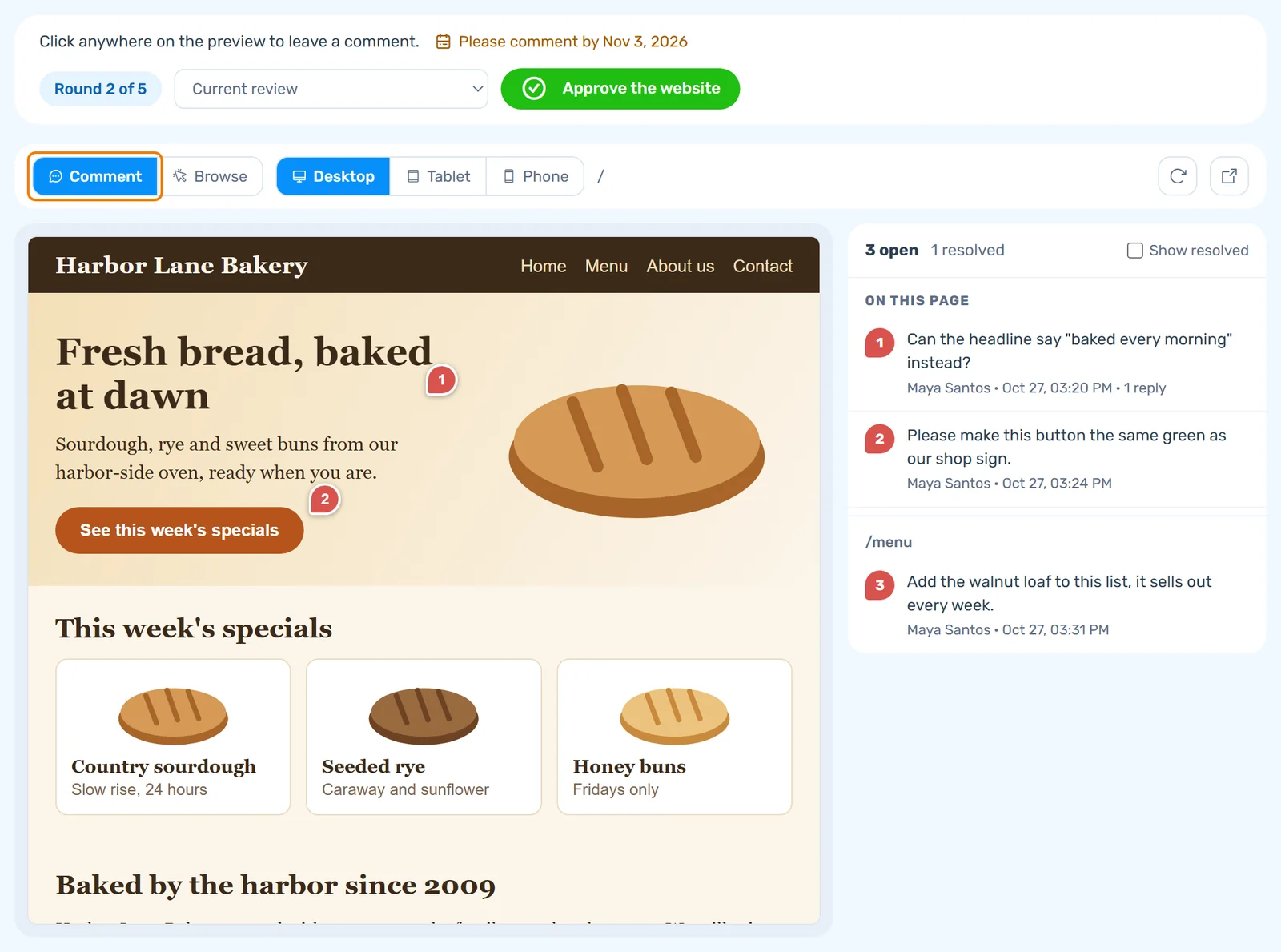
With Comment selected, click the spot on the page you want changed.
Step 3: Type your comment
Type in the What should change here? box and click Add comment.
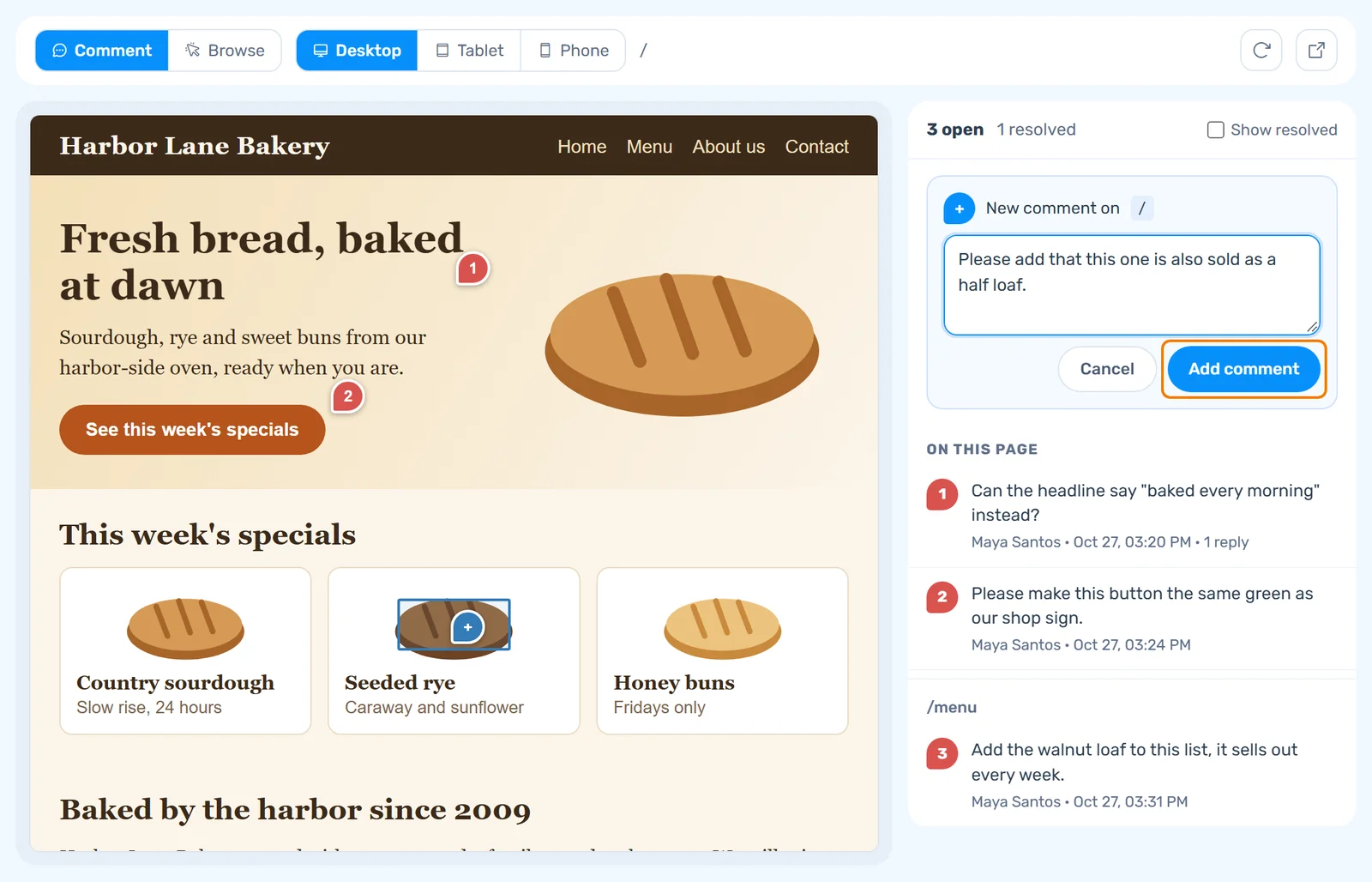
The comment gets a number and a pin on the page.
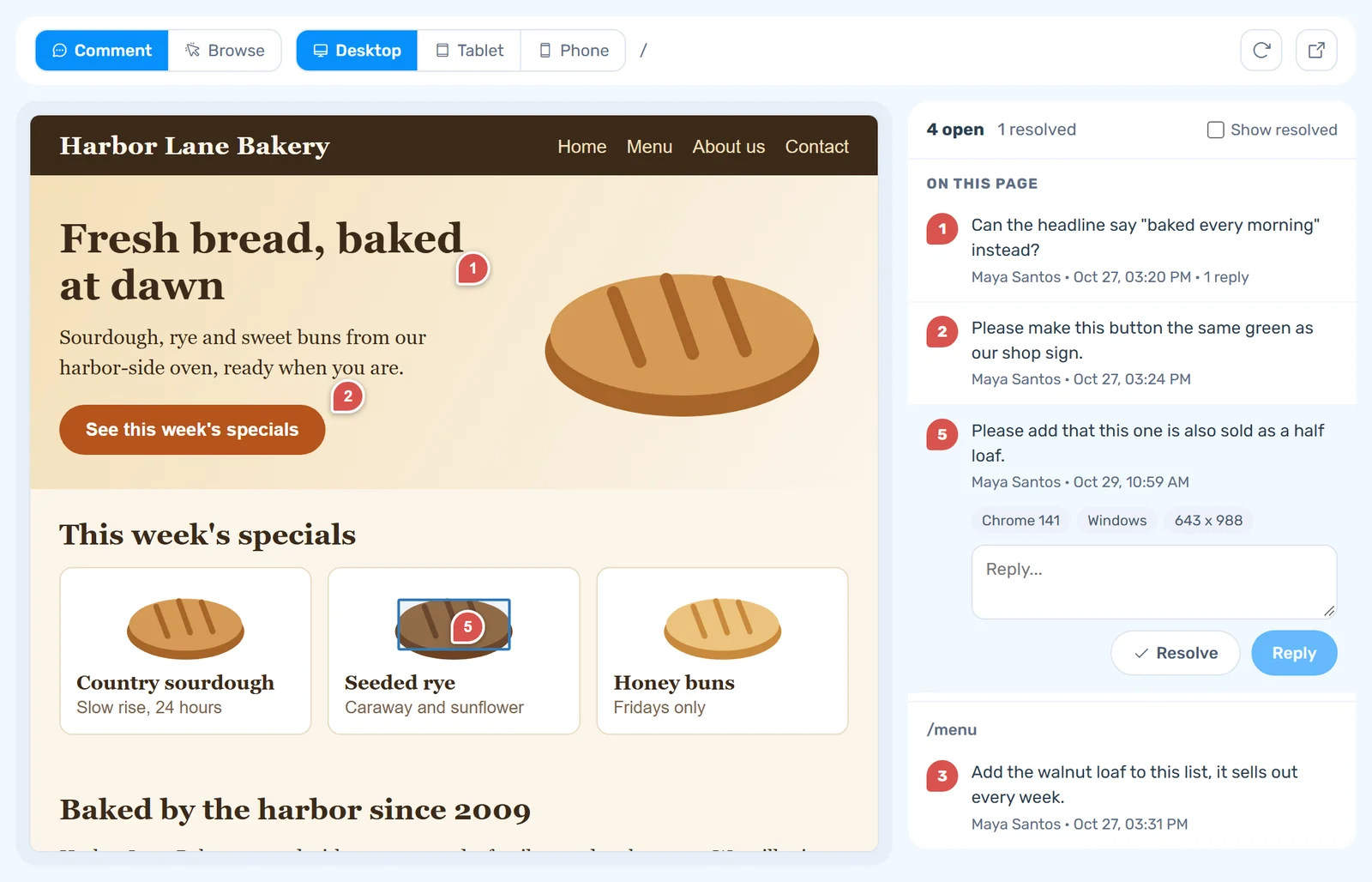
Browse and screen sizes
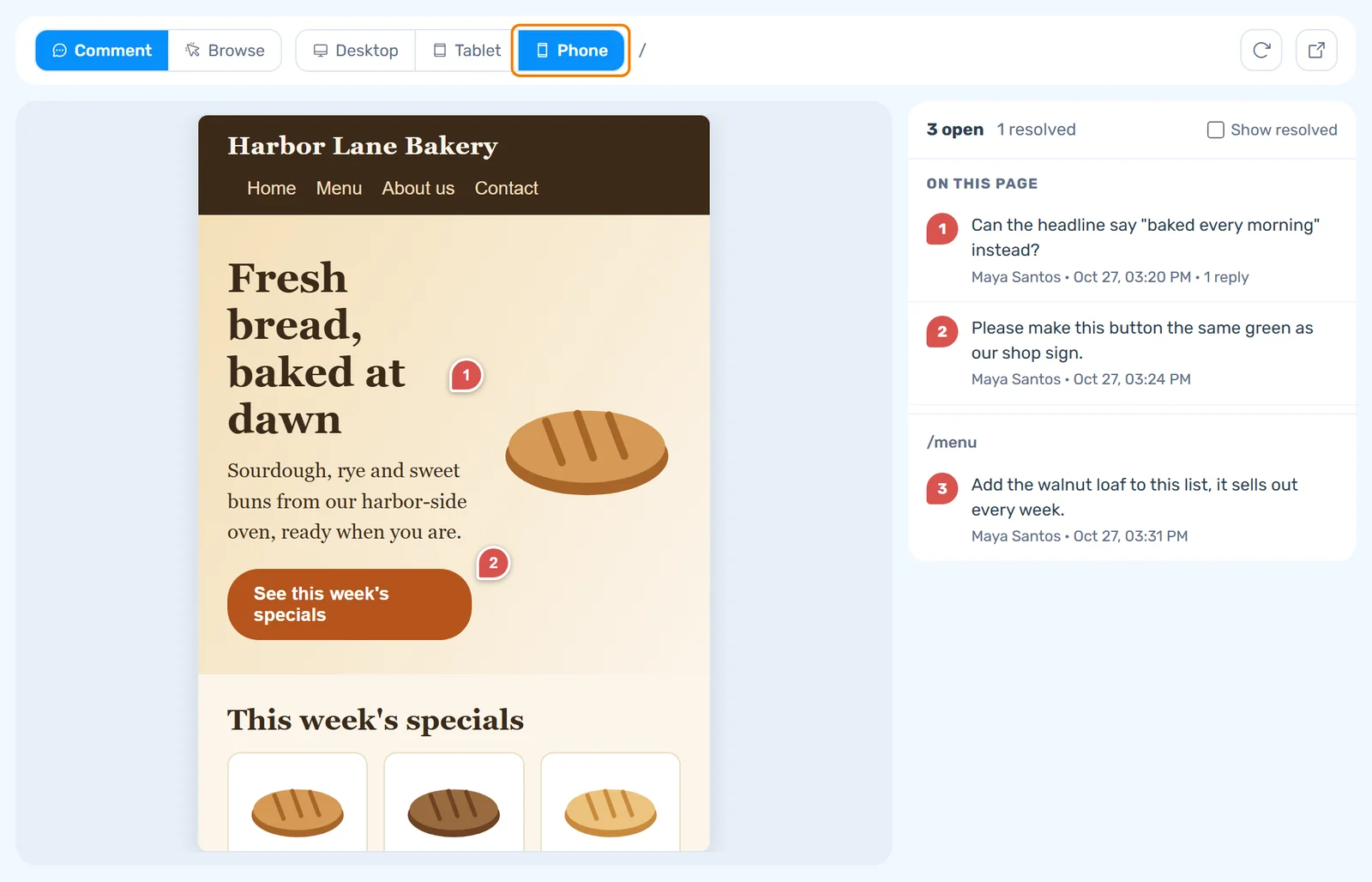
Switch to Browse to use the page normally, such as following links and opening menus. Desktop, Tablet and Phone change the screen size.
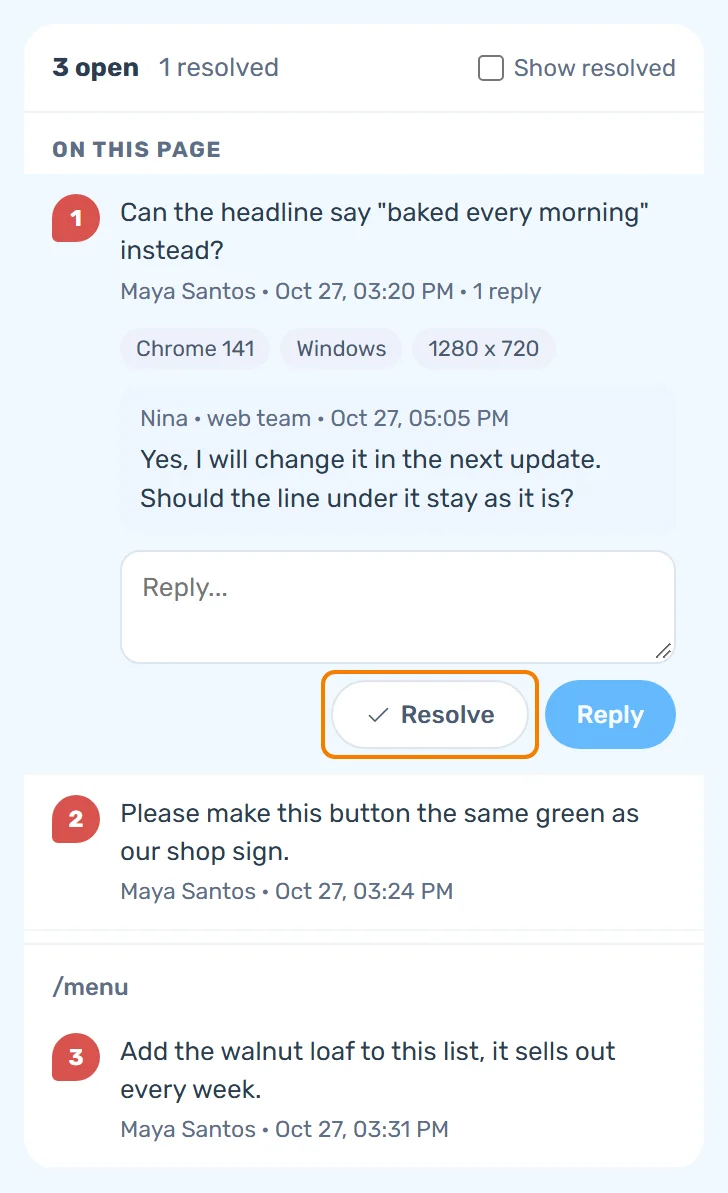
Replies and resolved comments
Comments are listed beside the preview. Click one to read the replies, write your own, or click Resolve when it is done. Reopen brings it back, and Show resolved lists the resolved ones. The drop-down at the top opens comments from earlier rounds.
If a note says clicking on the page is not available, send your changes in Messages instead. The team sees them the same way.
Revision Rounds
A revision round is one batch of changes to the agreed design. Free website creation includes up to five rounds. Review rounds under YOUR OFFER shows how many are used, and a Round tag on Your review shows the current one. When the web team starts a round for you, you get an email and a notification in the Hub.
Starting the next round
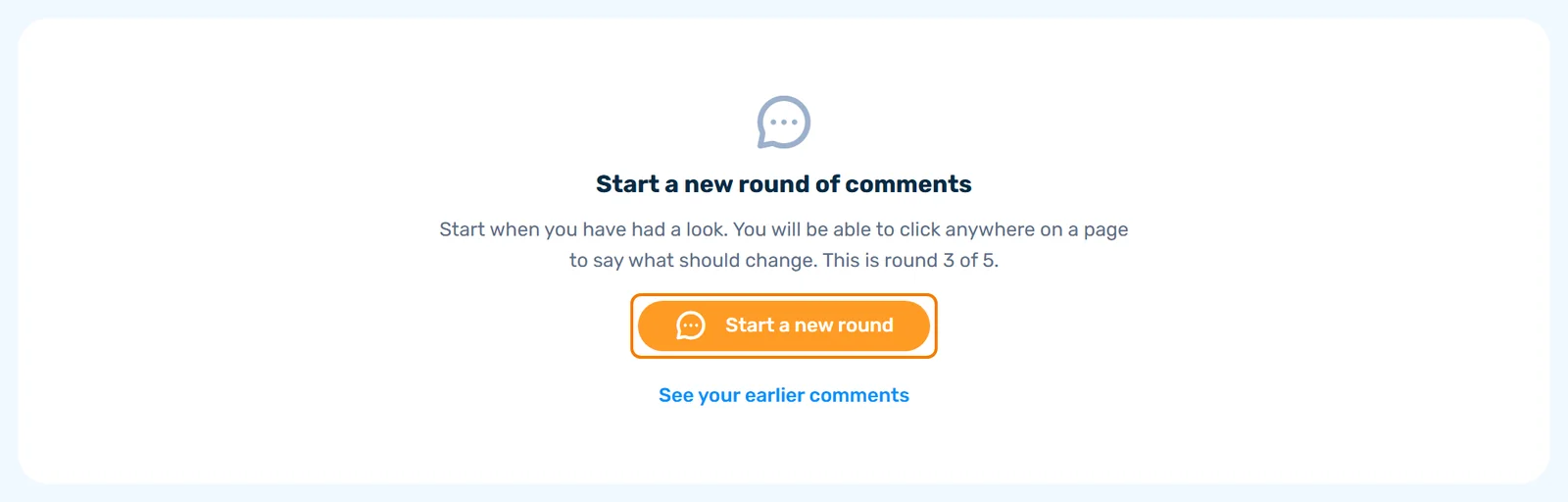
When the web team has worked through your comments and closed the round, Your review says Start a new round of comments and which round it would be. Have a look at the updated preview, then click Start a new round and comment as before. See your earlier comments opens the closed round, read-only.
- Seven days to respond. You have seven days to respond to each round. A round with no response in that time is closed and counts as one of the five.
- When rounds end. The free rounds end when you approve the website or when the fifth round is finished, whichever comes first. Later changes are quoted before we start.
- A different design. Replacing the design with a different one is a new project.
- Paused rounds. Paused by the web team while they make changes means you cannot add comments or approve until they resume the round. Your comments stay there.
- Thirty days of silence. If we receive no response for thirty days, we close the project, and we reopen it on request. We email you before that happens.
The Project Conversation
The Messages tab holds your CONVERSATION WITH THE WEB TEAM. Use it to send your logo and photos, say what your site should say, or ask anything about the build. The team answers there, and you get an email when they do.
Step 1: Open the Messages tab and write your message
Click Messages and type in the box at the bottom. To add files, click the paperclip. A message can carry up to 10 files of up to 10 MB each: images, PDF, Office, text or zip. Files are scanned for malware before they open.
Step 2: Click Send
Click Send. Your message joins the conversation.
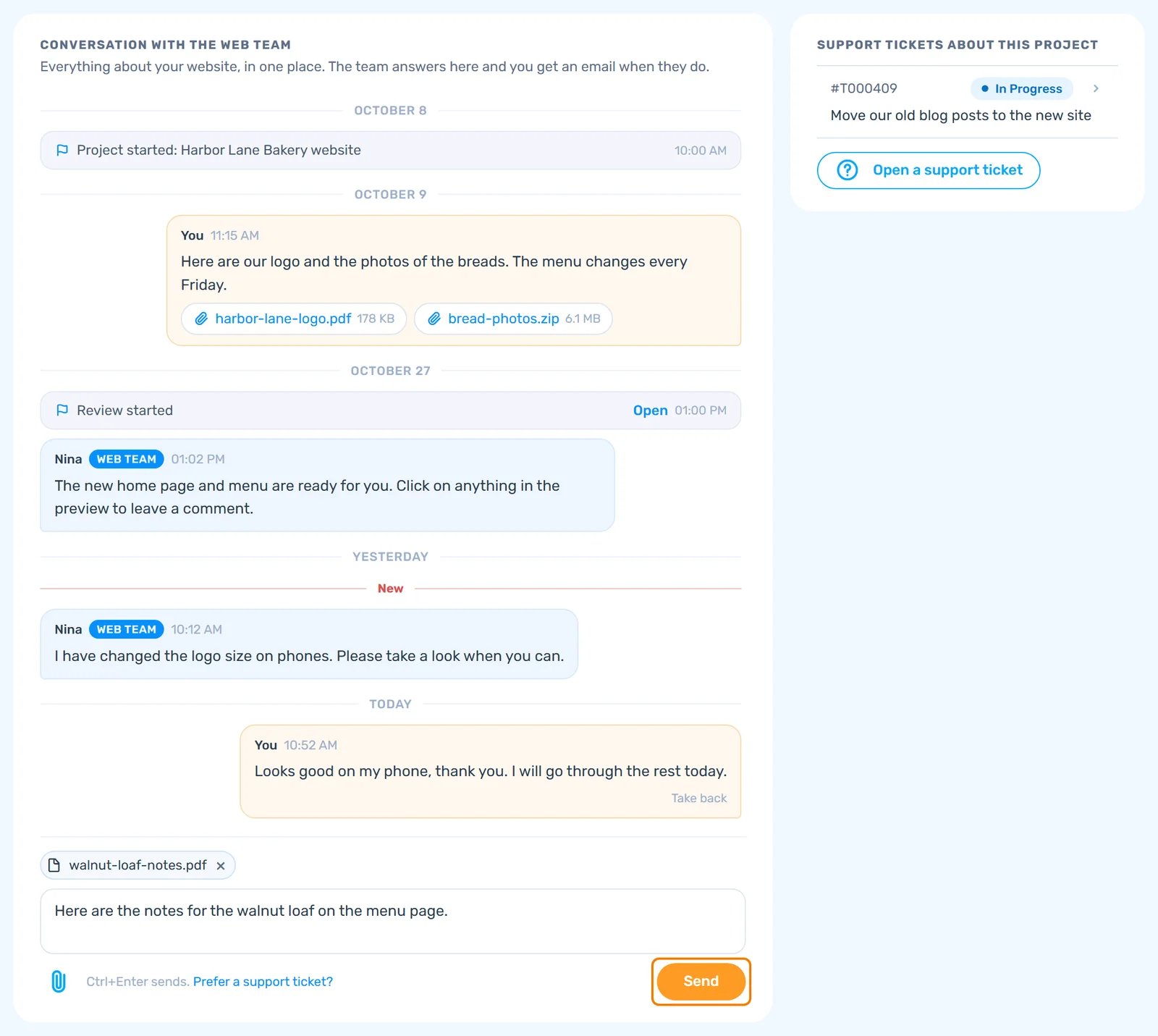
Take back removes your own message within 15 minutes of sending it. For something that needs its own thread, use Open a support ticket. Tickets about the project are listed beside the conversation, each with its number, full subject and status; click one to open it.
Approving the Website
Step 1: Resolve every open comment
Resolve every open comment on the current round, so your approval covers everything that was raised. While comments are open, the panel says so and Yes, approve cannot be clicked.
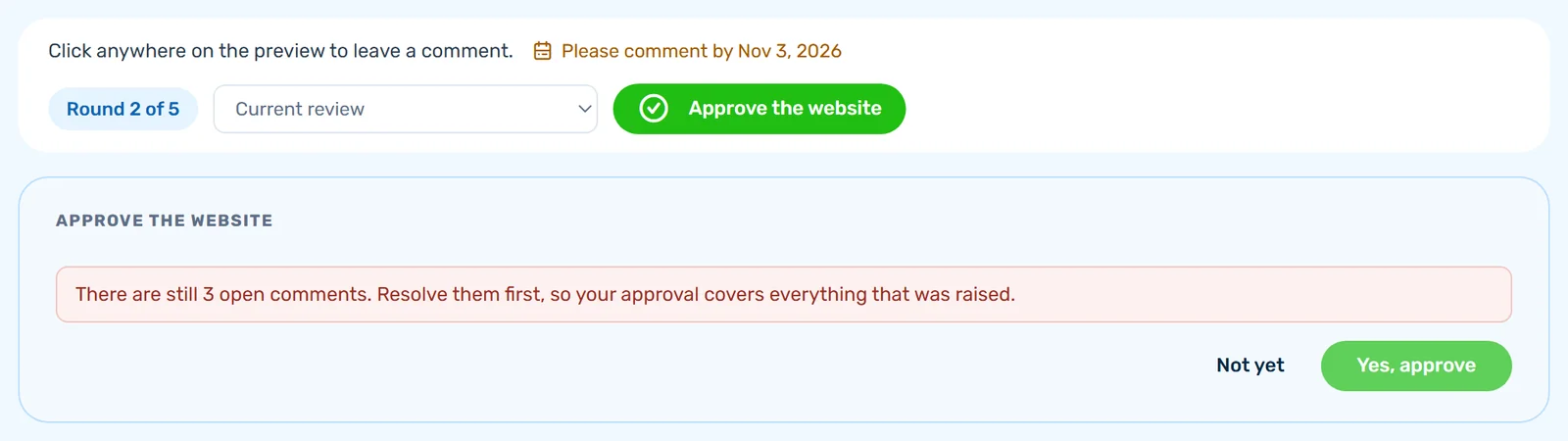
Step 2: Click Approve the website
On Your review, click Approve the website. It appears while a round is open.

Step 3: Confirm
Read the panel, then click Yes, approve, or Not yet to go back.
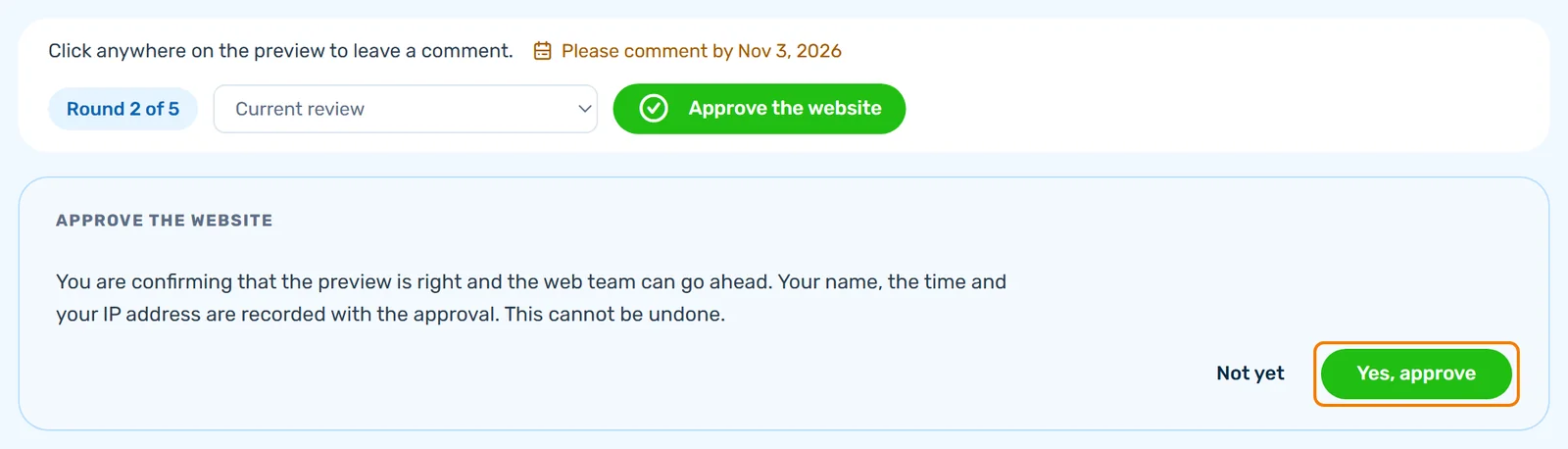
Your name, the time and your IP address are recorded with the approval, and it cannot be undone. If your role cannot approve, the page says A company owner or admin approves the website.
What Happens at Go-Live
After you approve, the project shows Approved and there is nothing more for you to do while we put the website live. A website you have not approved stays on its private preview address and is never published. A website you have approved stays live while your hosting plan is active.
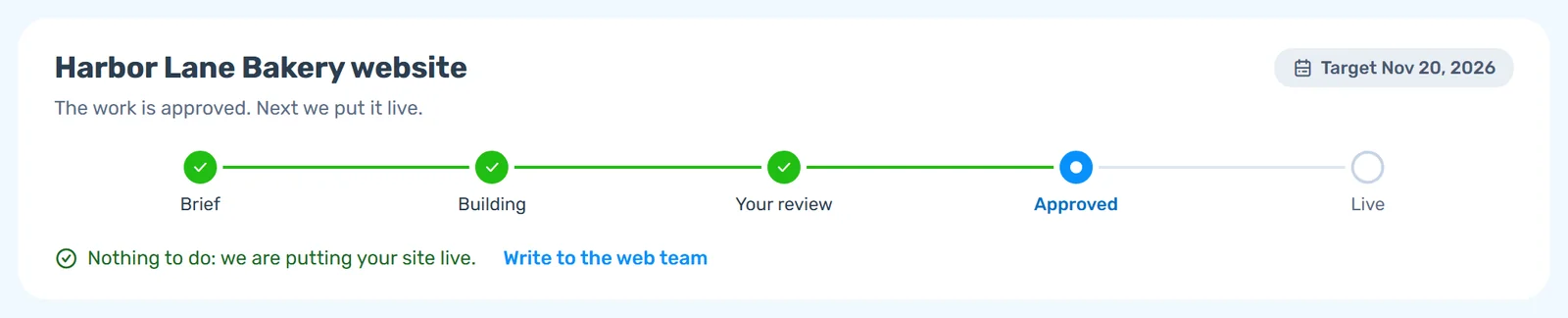
At go-live the project moves to Live, we email you, and Open your website appears on the project page.
YOUR OFFER then shows the dates for your hosting plan: Went live, Free months, First invoice and Commitment.
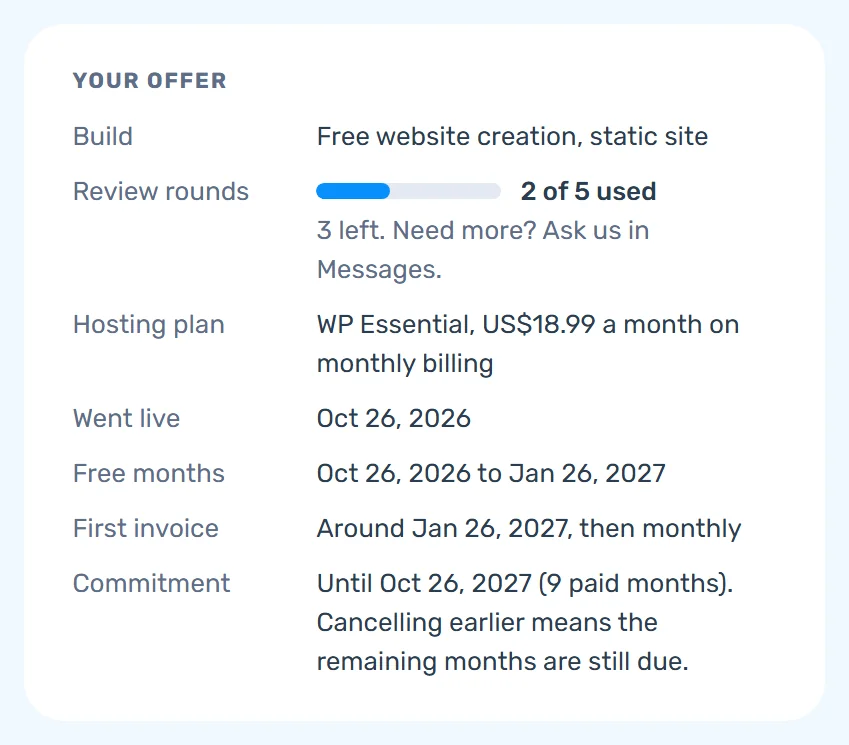
- The website runs on a hosting plan with a minimum term of twelve months, starting on the day it goes live.
- On monthly billing, months one to three are free and months four to twelve are billed monthly at the plan's price.
- On yearly billing there are no free months, and the yearly price is paid on the day the website goes live.
- If you cancel before the end of month twelve, the remaining months up to month twelve become due at once. Once they are paid, the website stays online until the end of month twelve.
See How to Cancel Your Hosting Plan and the offer terms.