Your Settings and Notifications
Table of Contents
Settings in the HostBarrel Hub holds your profile, company details, password, security, alerts and activity. Open it from the circle with your initials at the bottom of the sidebar. The bell in the header shows your latest notifications, and the Notifications page has them all.
The Settings Tabs
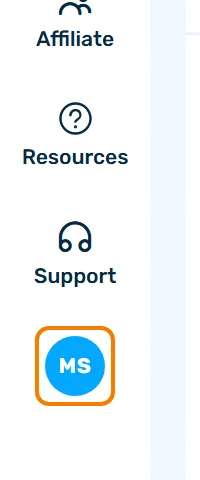
Step 1: Click the circle with your initials
It sits at the bottom of the sidebar.
Step 2: Pick a tab
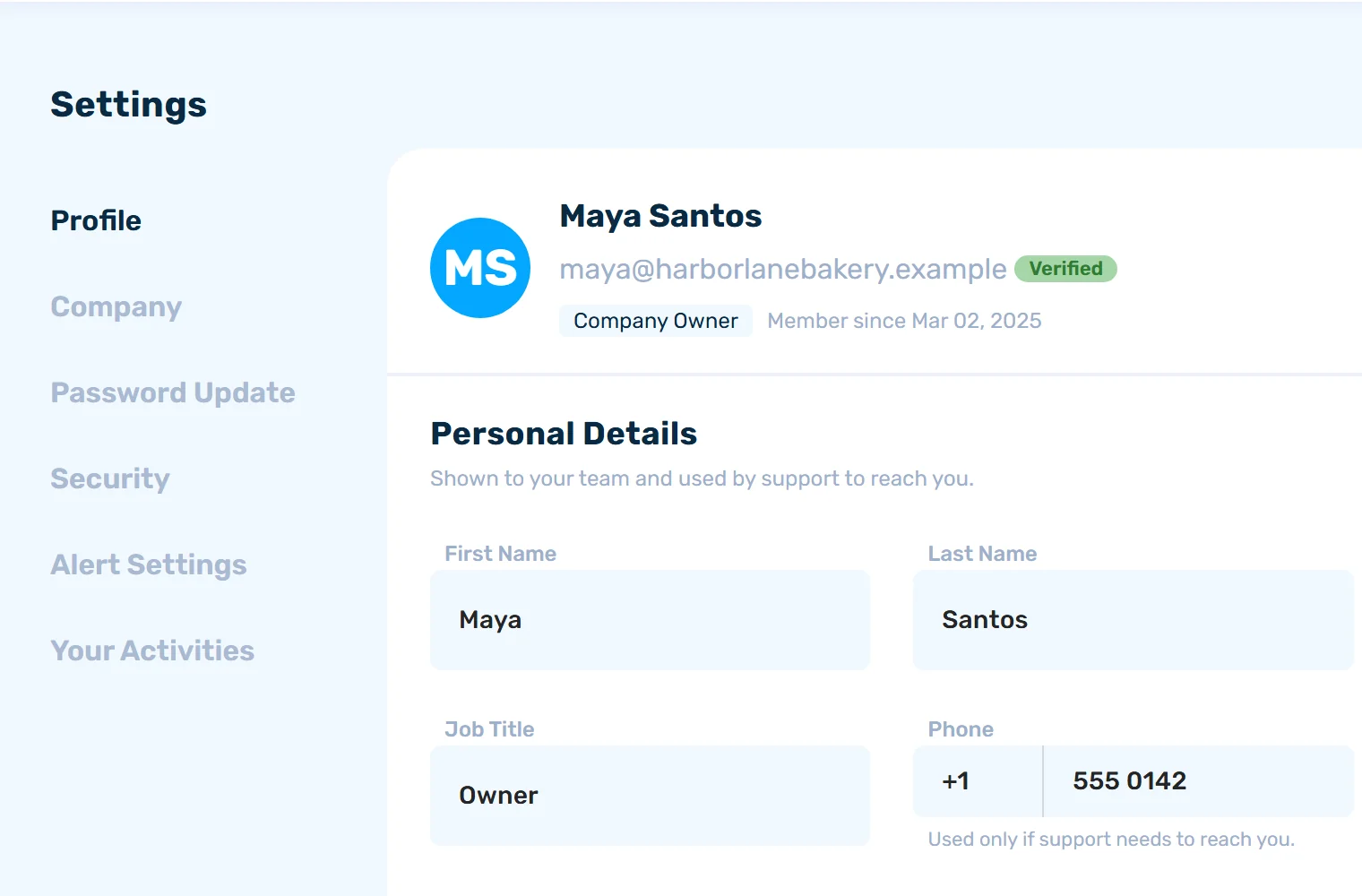
Everyone sees Profile, Password Update, Security, Alert Settings and Your Activities. The Company tab appears only if your role can view company details.
Profile
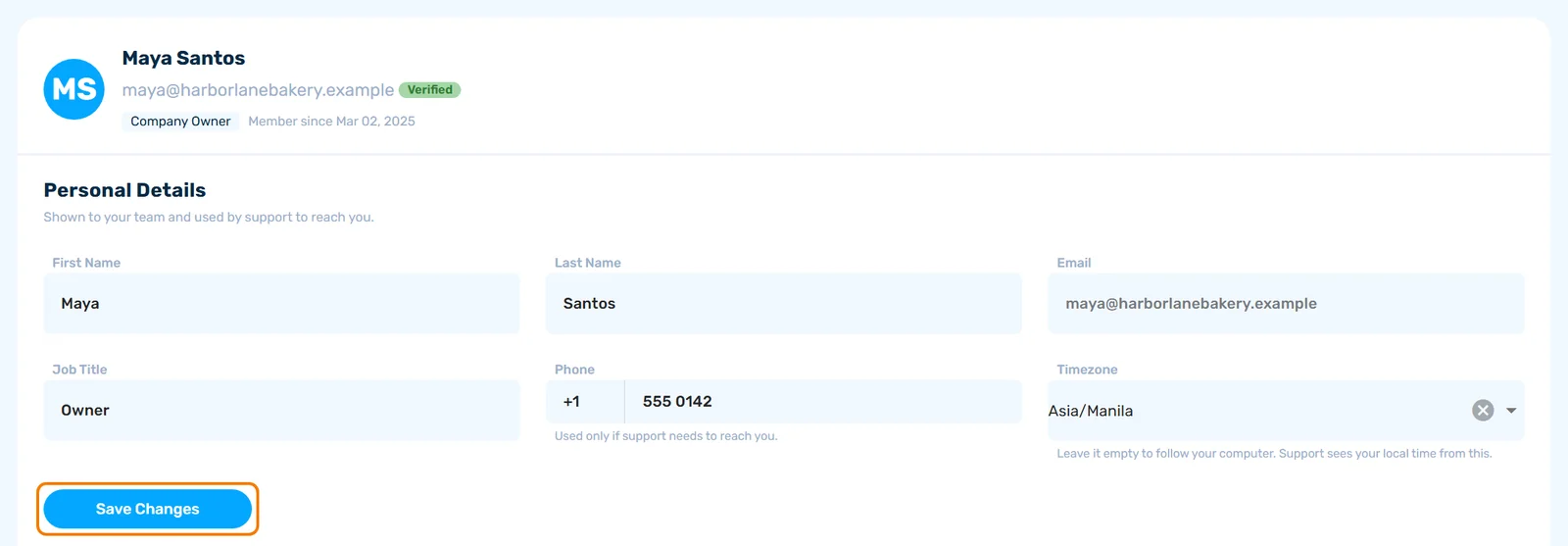
Change your First Name, Last Name, Job Title, Phone and Timezone, then click Save Changes. Your Email is shown but cannot be edited here. Leave Timezone empty to follow your computer. Support sees your local time from it.
Your address is your own, apart from the company's, and has its own Save Address button.
Email Verification
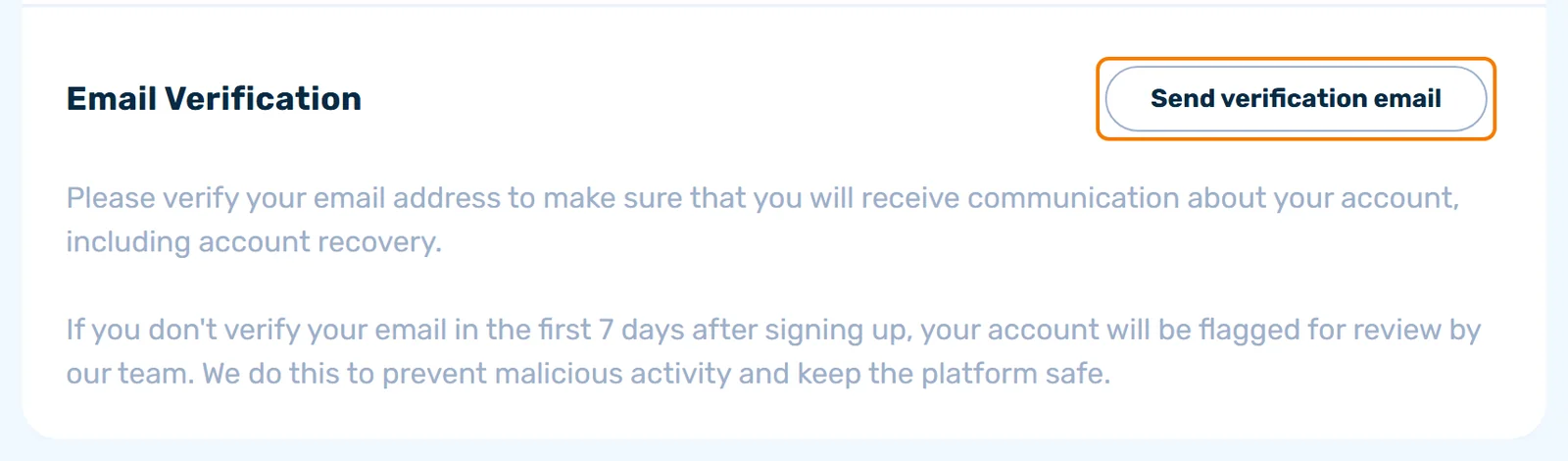
A Verified or Unverified label sits beside your email at the top of Profile. If it says Unverified, click Send verification email in the Email Verification section. Verifying makes sure account notices and recovery emails reach you. If you don't verify in the first 7 days after signing up, your account is flagged for review by our team.
Company
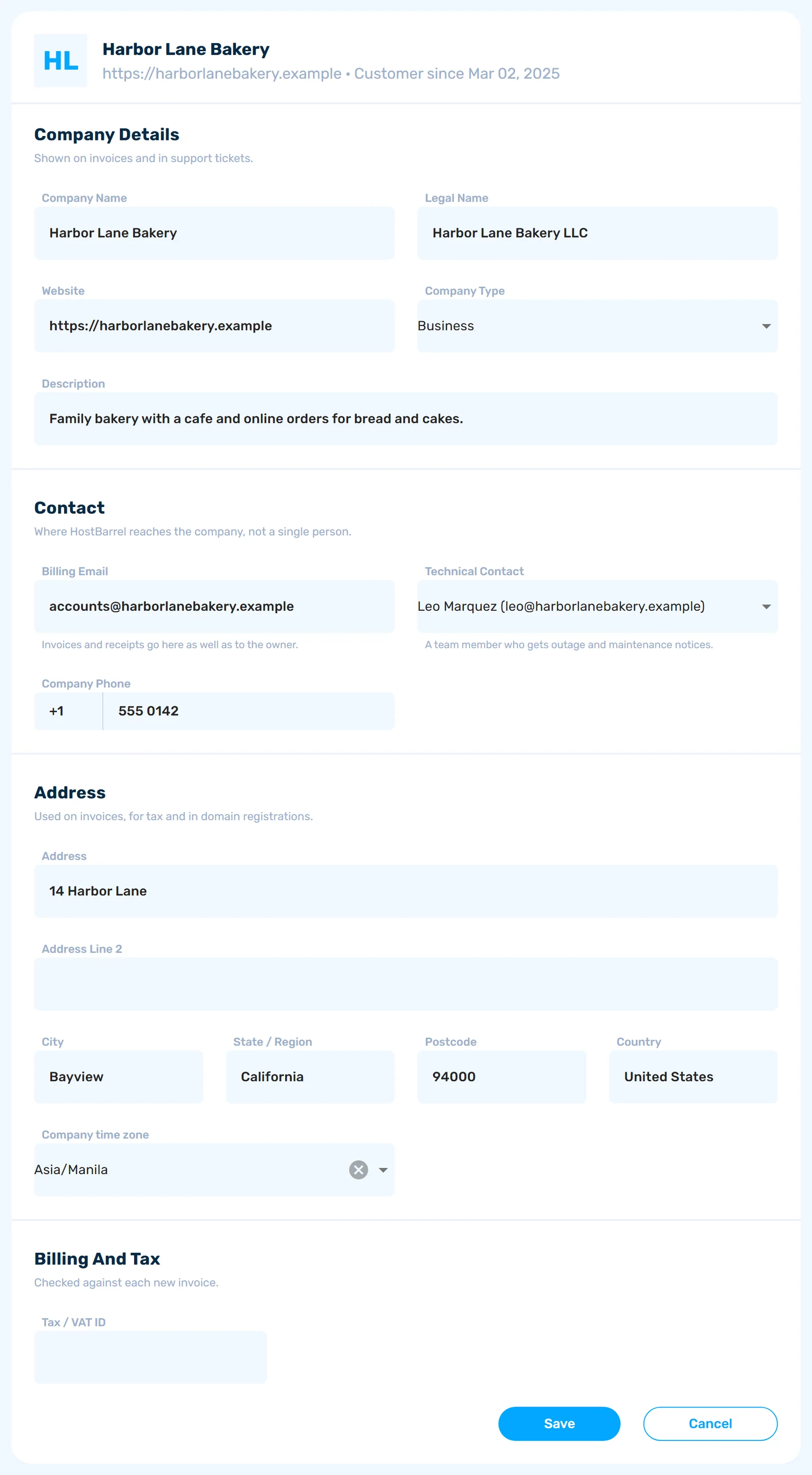
This tab has Company Details, Contact, Address and Billing And Tax. Leave Company time zone empty to take it from the address. A role that can view but not change these details sees a notice and no Save button.
Changing Your Password
Step 1: Open Password Update
Click the Password Update tab.
Step 2: Enter the passwords and save
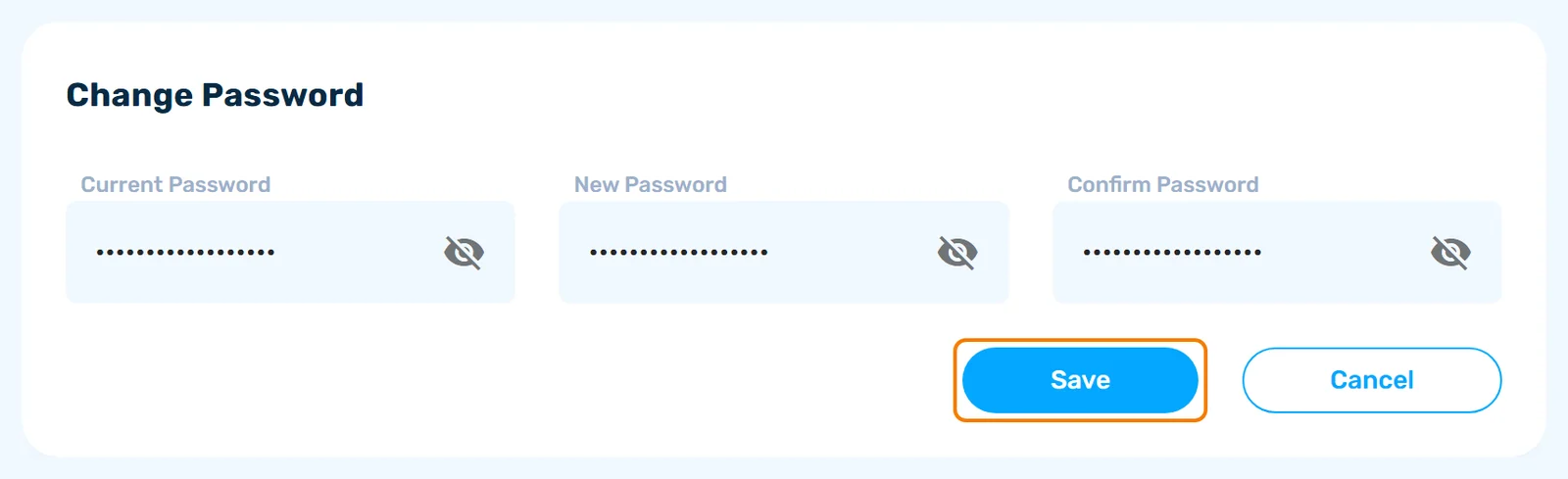
Enter your Current Password, then a New Password of at least 8 characters, type it again in Confirm Password, and click Save.
Security
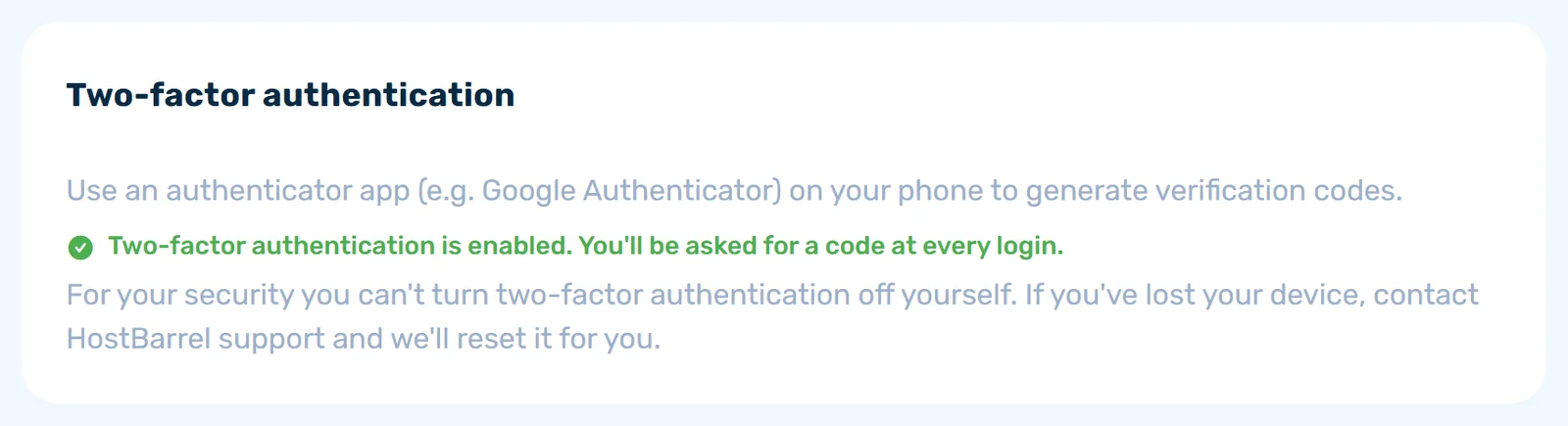
This tab holds two-factor authentication. For setting it up and recovery codes, see the two-factor authentication guide.
Alert Settings
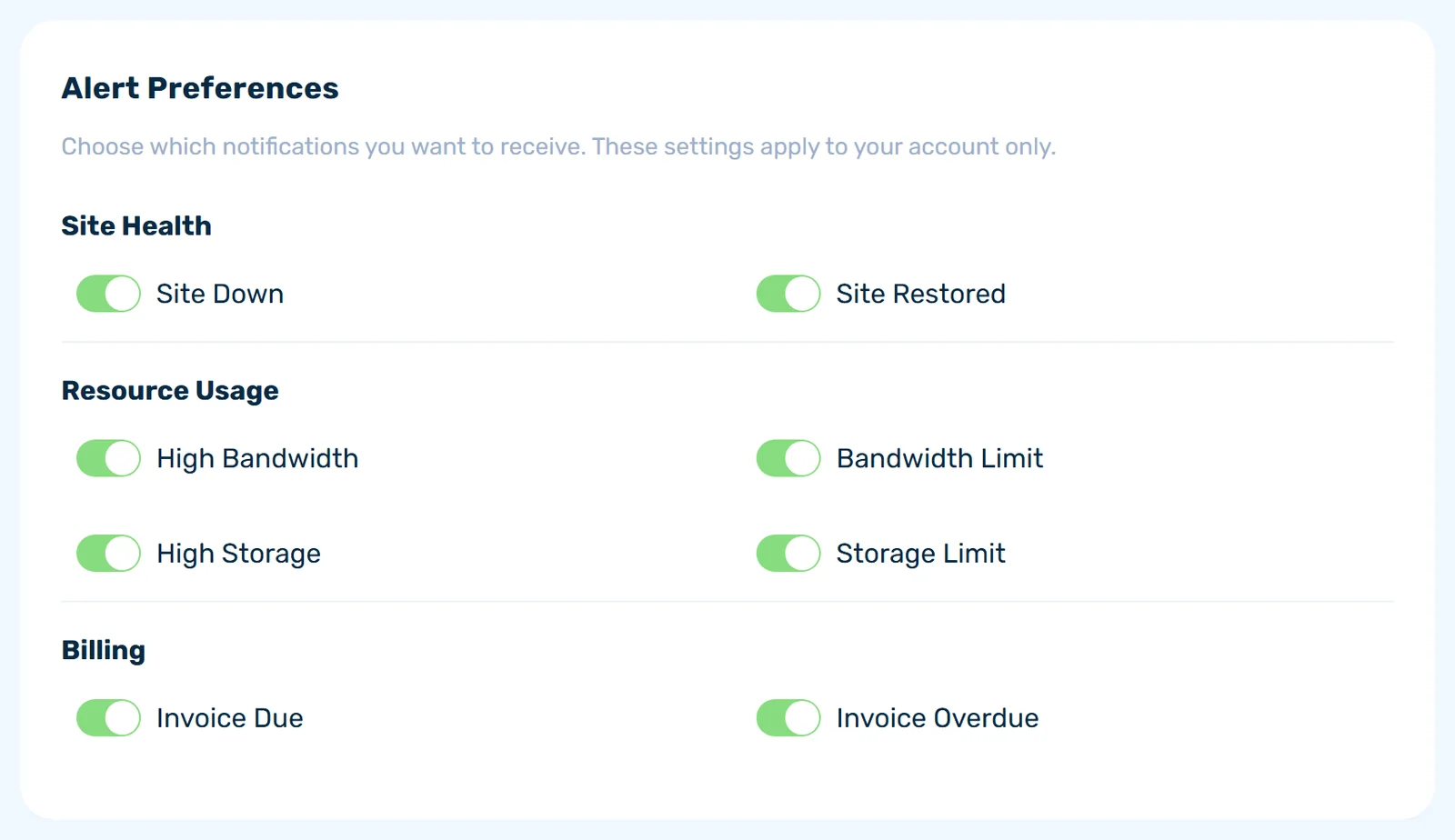
These switches apply to your account only, and each change saves by itself. Site Down, Site Restored, High Bandwidth, Bandwidth Limit, High Storage, Storage Limit, Invoice Due and Invoice Overdue decide whether we email you that alert. The company owner starts with them on, and team members start with them off.
Your Activities
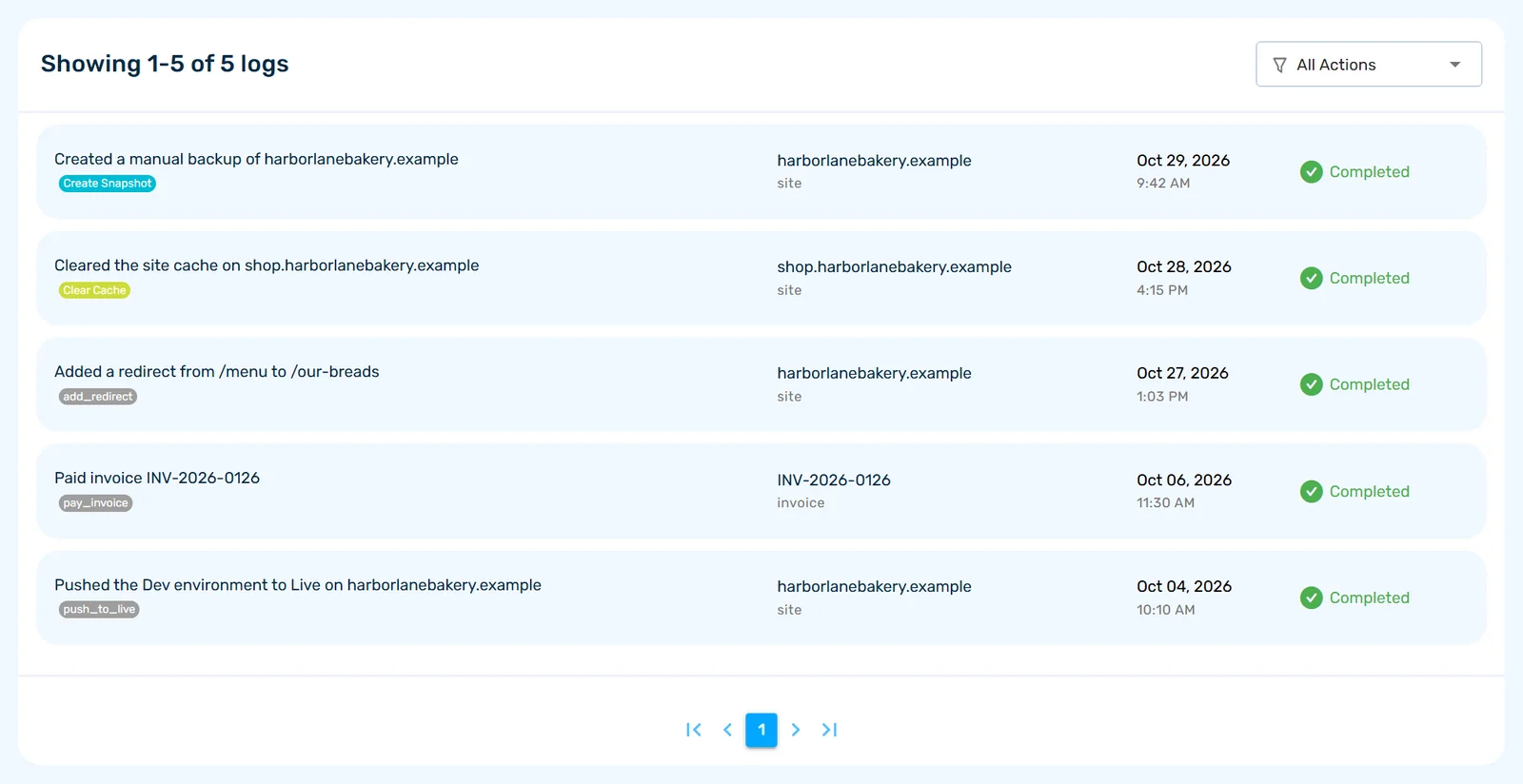
This tab lists what you have done in the Hub, with a filter that starts on All Actions. To see what everyone on the account has done, click View All on the Dashboard's activity card.
The Bell
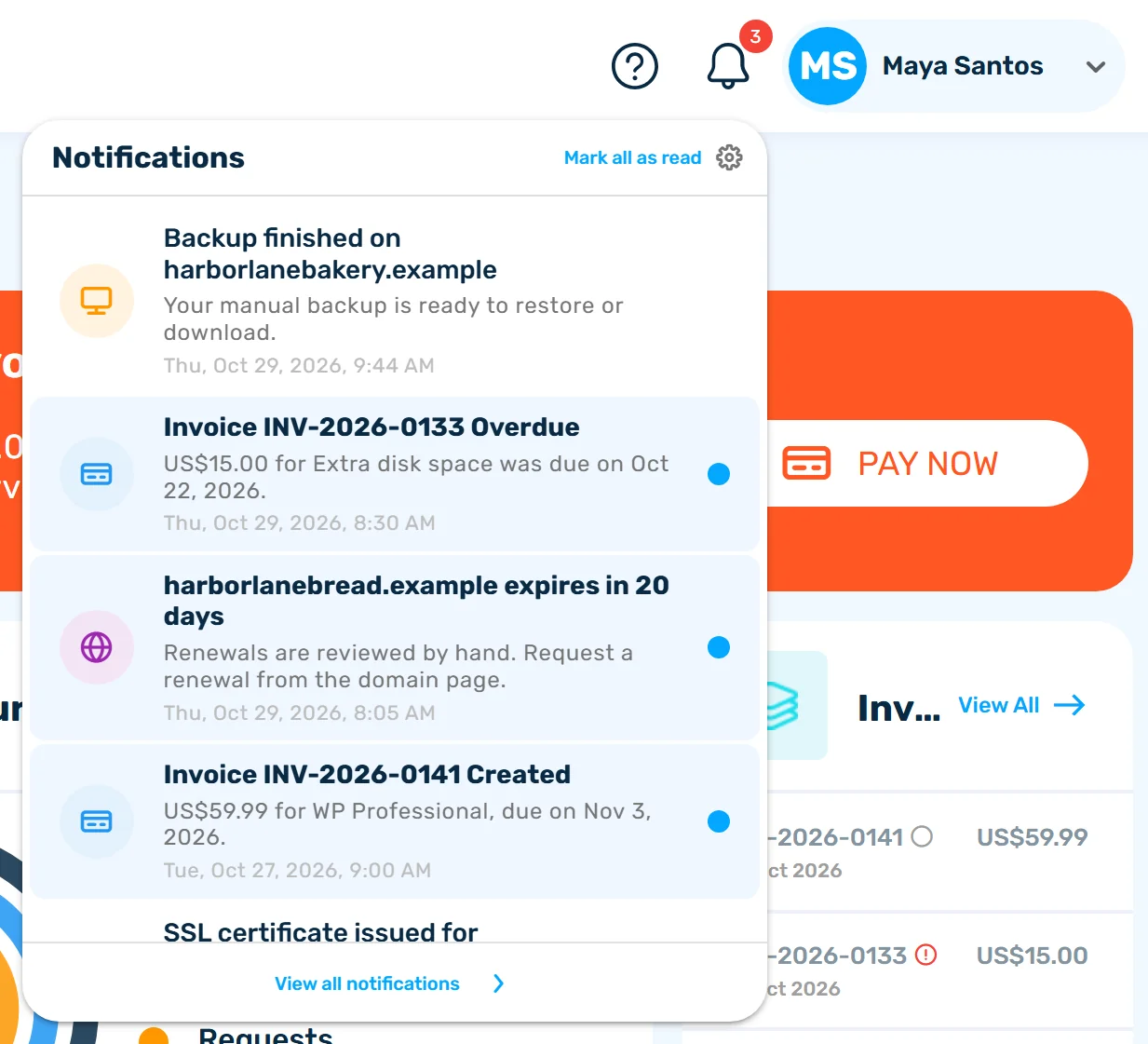
The bell shows your latest ten notifications. Click one to mark it read and open what it is about. Mark all as read appears when something is unread, and View all notifications opens the full page.
The Notifications Page
The page at /notifications lists alerts about your sites, domains, SSL certificates and billing, newest first, under Today, Yesterday and Earlier.
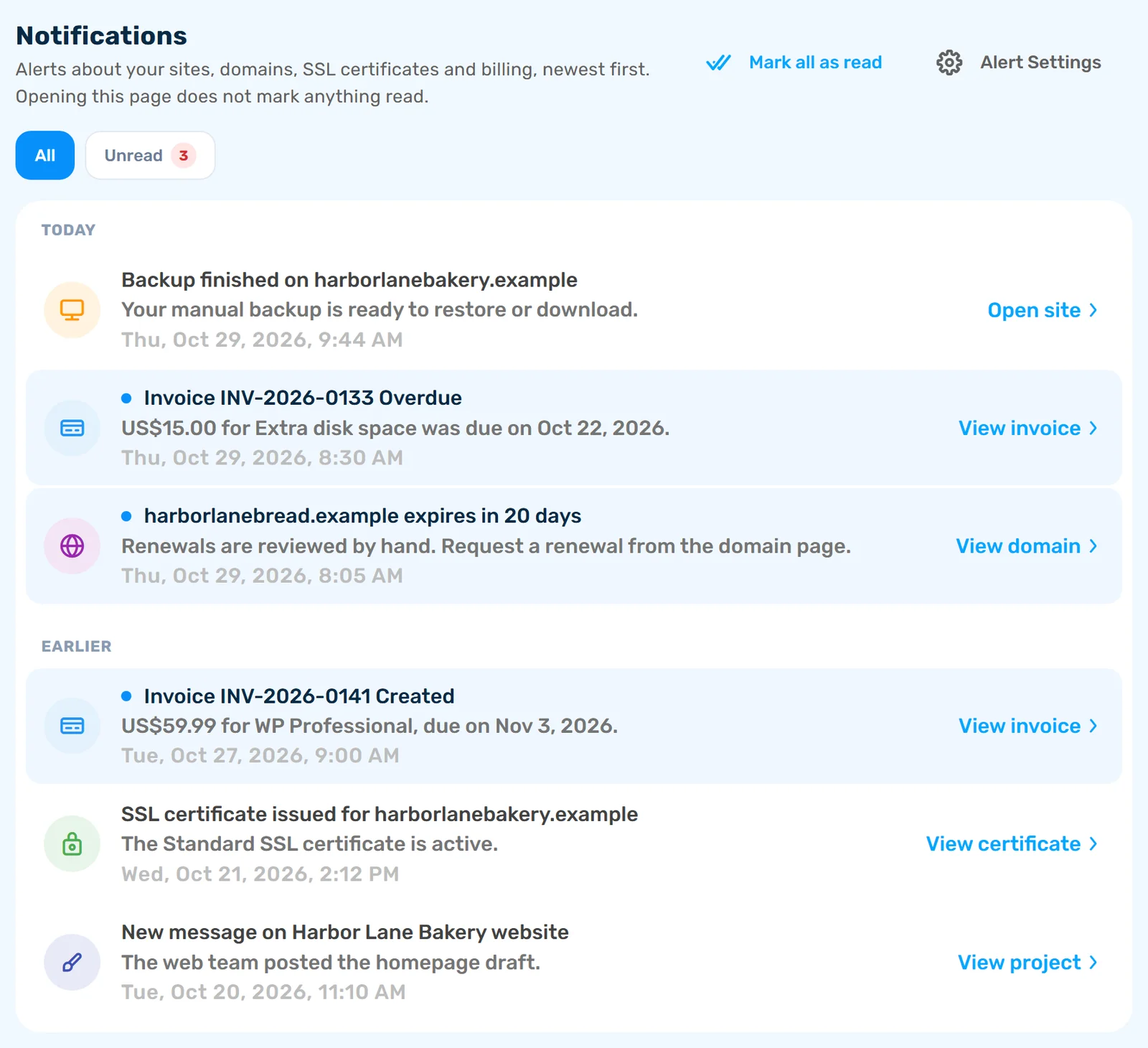
- All and Unread filter the list. Unread shows a count
- Mark all as read clears everything unread
- Alert Settings opens that Settings tab
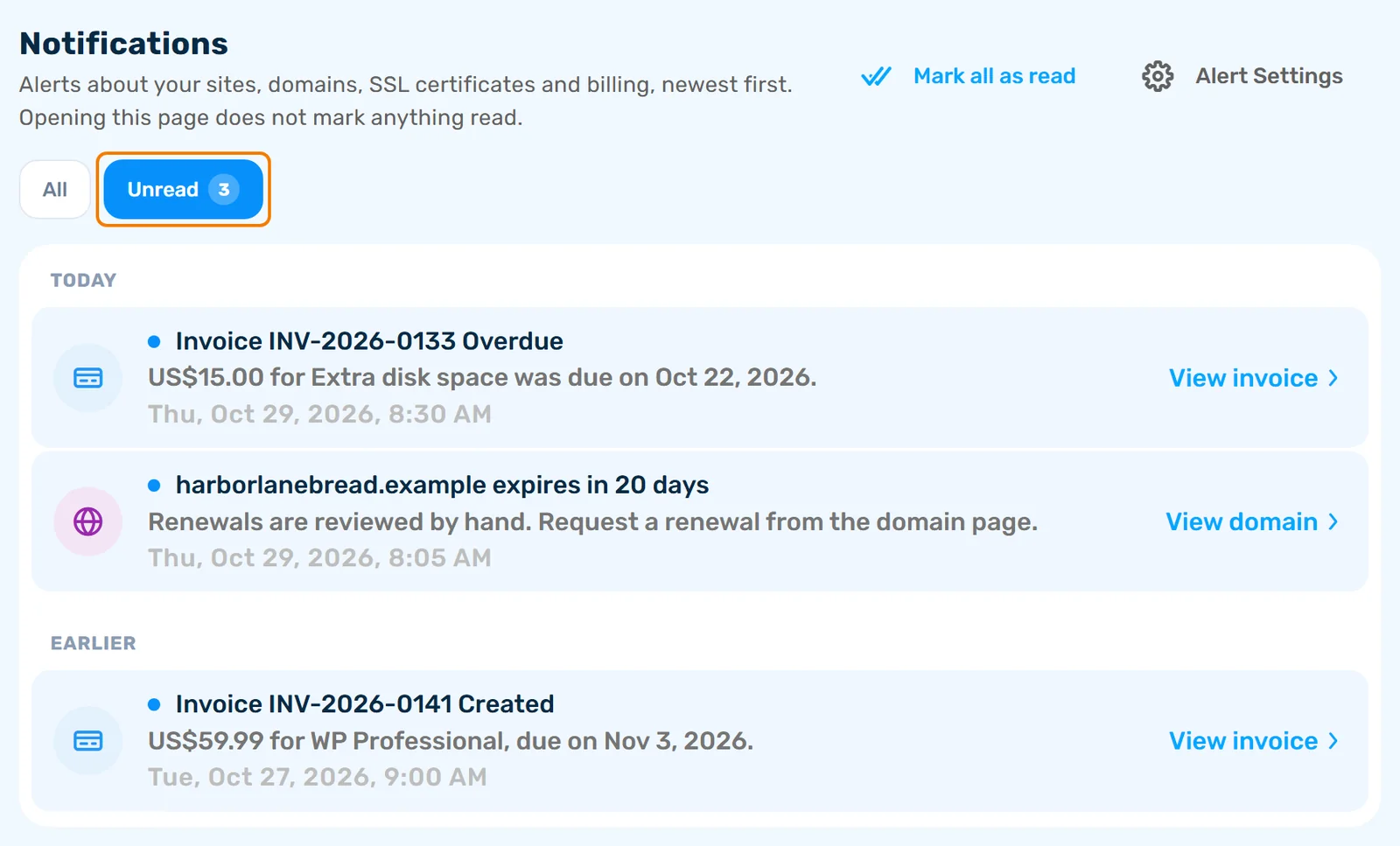
Opening the page does not mark anything read. Read is not the same as resolved: an unpaid invoice is still unpaid.