Securing Your Account with Two-Factor Authentication
To turn on two-factor authentication, go to Settings, open the Security tab, scan the QR code with an authenticator app and enter the 6-digit code it shows. After that, every login asks for a code as well as your password.
Why Enable 2FA?
Your hosting account controls your websites, domains, and billing. With two-factor authentication (2FA), a stolen or guessed password alone isn't enough to get in - a login also requires a 6-digit code from your phone.
What You Need
An authenticator app on your phone: Google Authenticator, Authy, Microsoft Authenticator, and 1Password all work.
Enabling 2FA
- Go to Settings in your dashboard and open the Security tab
- Find Two-Factor Authentication and start setup
- Scan the QR code with your authenticator app - or copy the setup key into the app manually
- Enter the 6-digit code the app shows to verify, and save
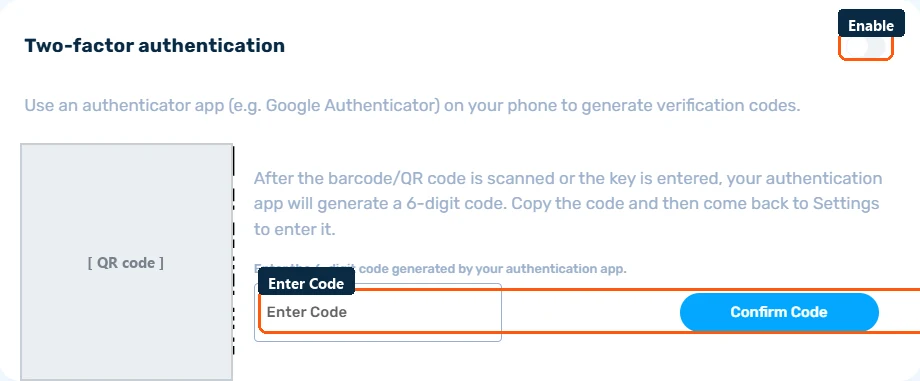
From now on, logins ask for your password and a current code from the app.
Keep the Setup Key Safe
Store the setup key (or a screenshot of the QR code) somewhere secure like a password manager. If you lose your phone, you can re-add the account to a new authenticator app from that key. Without it, you'll need to contact support and verify your identity to regain access.
Disabling 2FA
You can turn 2FA off from the same Security tab - you'll need a valid code to do so. We recommend leaving it on permanently.
Required 2FA
Some accounts are configured to require 2FA for all users. If yours is, you'll be prompted to complete the setup above at login before you can use the dashboard - the flow is identical.
Team Accounts Too
2FA protects only the account it's enabled on. If you've invited team members, encourage each of them to enable it - an account is only as secure as its least-protected login.
