Migrating Your WordPress Site to HostBarrel
To migrate a WordPress site to HostBarrel, export it with the All-in-One WP Migration plugin, create a new site on HostBarrel, import the export file there, and only then point your domain's DNS at HostBarrel.
Overview
Migrating your WordPress site to HostBarrel is straightforward. We recommend using the All-in-One WP Migration plugin for the simplest experience.
Step 1: Export Your Current Site
Install the All-in-One WP Migration plugin on your current WordPress site. Go to All-in-One WP Migration > Export and select Export To File. Download the generated .wpress file.
Step 2: Create a Site on HostBarrel
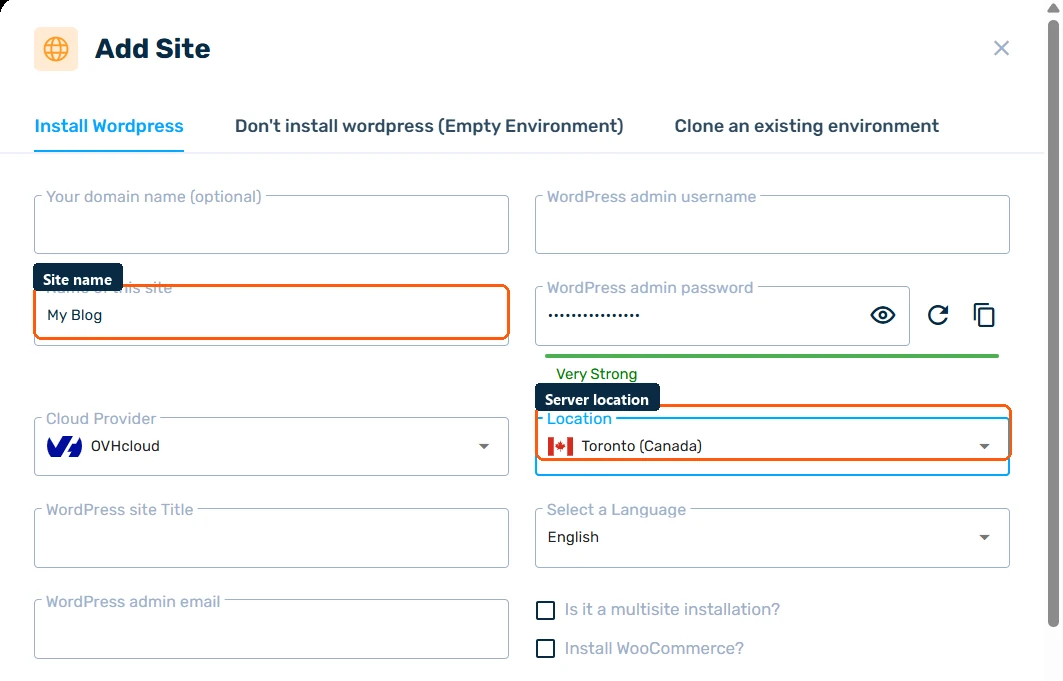
Log in to your HostBarrel dashboard, go to Sites, and click Add Site to create a fresh WordPress installation.
Step 3: Import Your Site
Log in to the new WordPress dashboard and install the same migration plugin. Go to All-in-One WP Migration > Import and upload your .wpress file. The plugin will replace the fresh installation with your migrated content.
Step 4: Add Your Domain
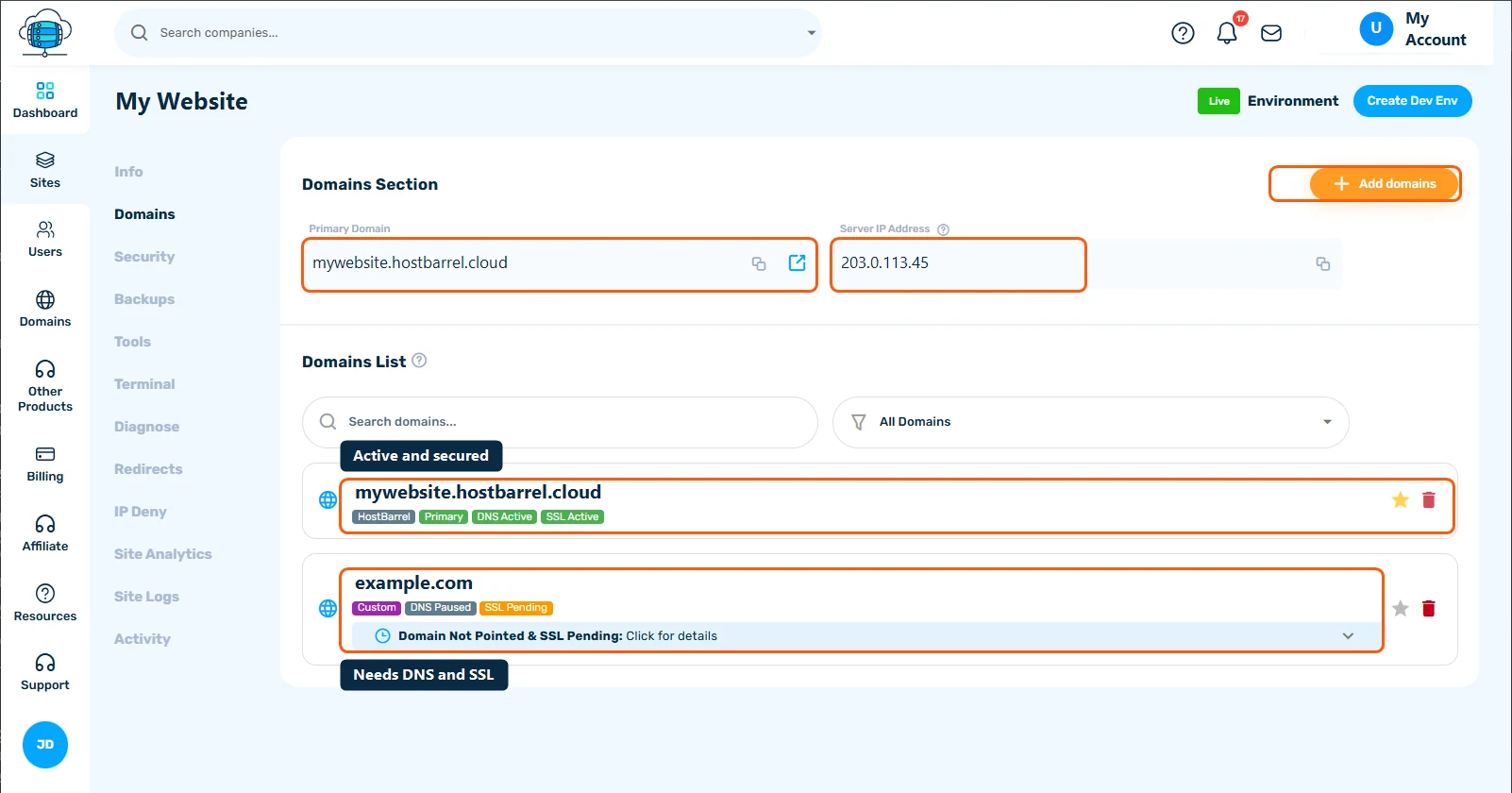
Once you've verified the migration looks correct, add your custom domain from the site's settings in the HostBarrel dashboard. Update your domain's DNS to point to HostBarrel, and SSL will be configured automatically. Allow 24-48 hours for DNS propagation. See How to Point Your Domain to HostBarrel for the details.